
Mujib phone app and notifications
The Mujib phone app is the dashboard itself, installed on your home screen, and it brings your notifications: a customer who needs a person, a new message, or a new booking by the agent. No app store is involved: install it from the browser on an iPhone or Android phone, then turn notifications on.
The installed app opens on its own, without the browser bar, on the Overview page. Everything in it is what you see in the Mujib dashboard on any other device.
How do I install the Mujib app on Android?
Section titled “How do I install the Mujib app on Android?”Open the Mujib dashboard in Chrome on your phone, and a Install Mujib on your phone card appears at the top of the page.
- Sign in to
https://app.mujib.aiin Chrome on your phone. - On the Install Mujib on your phone card, press Install.
- Confirm in the install window the browser shows. The Mujib icon appears on your home screen.
- Open Mujib from the icon, and turn notifications on as described in the next section.
If you close the card with its close button, it stays hidden for 14 days. If it never shows up, install the app from Chrome’s menu beside the address bar, by choosing to install it or add it to the home screen.
How do I install the Mujib app on iPhone?
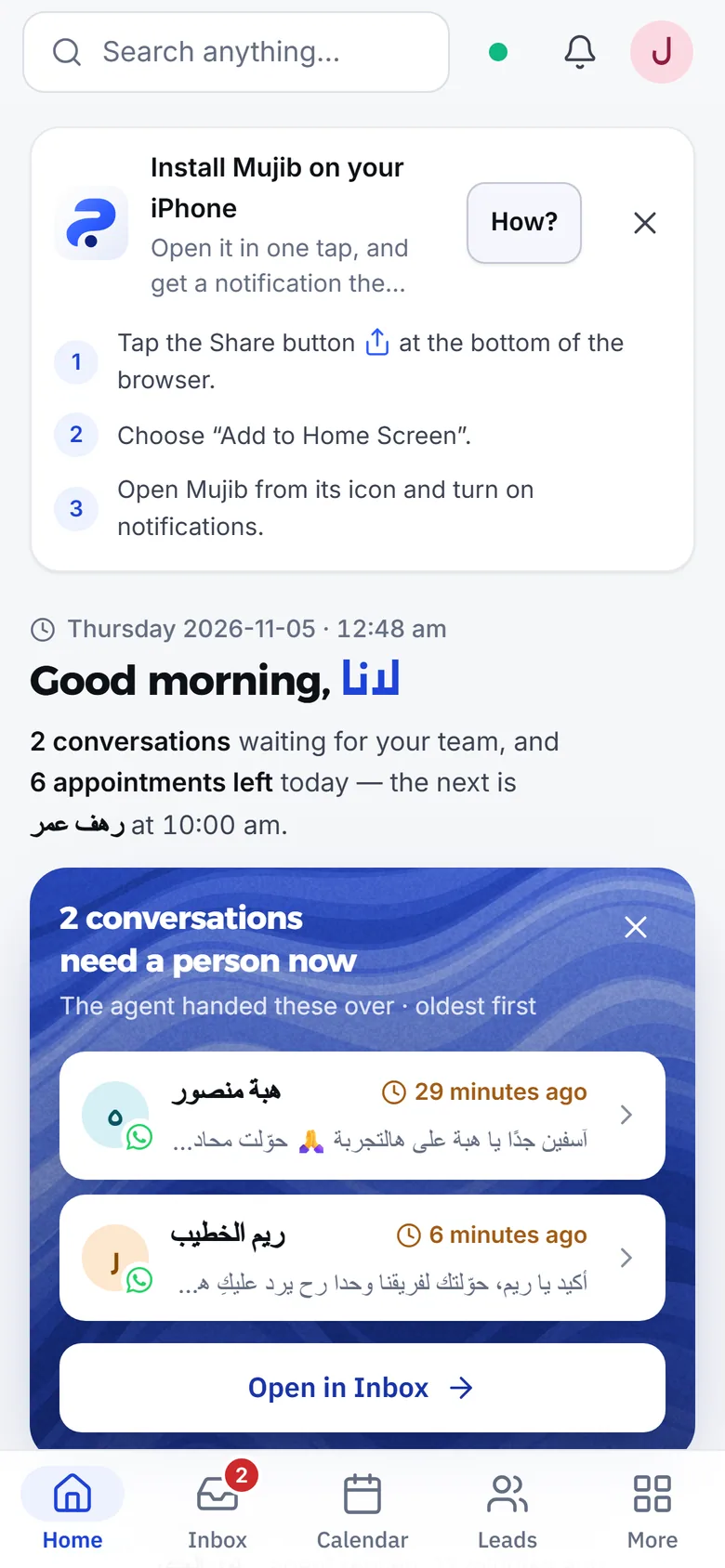
Section titled “How do I install the Mujib app on iPhone?”Open the Mujib dashboard in Safari on your iPhone, and a Install Mujib on your iPhone card appears. Press How? to show its steps:
- Tap the Share button at the bottom of the browser.
- Choose “Add to Home Screen”.
- Open Mujib from its icon and turn on notifications.
How do I turn on conversation notifications on my phone?
Section titled “How do I turn on conversation notifications on my phone?”Once you open Mujib from the installed app, a card asks you to turn notifications on for this device and says what you will get.
- Press Turn on notifications.
- Allow it in the permission window your phone shows.
- Mujib confirms that notifications are on for this device, and the card goes away.
If you press Not now, the card stays hidden for 14 days. You can turn notifications on or off at any time:
- From your account menu: tap your picture or name, then Notifications on this device. This is there for every account, and it is also where staff choose which kinds they get.
- From Settings (owner and admins): Settings, then Notifications, then Push notifications on this device.
Notifications are turned on per device: if you use two phones, turn them on on each. The enable card also appears in a computer’s browser when you open the dashboard there.
Which notifications do I get?
Section titled “Which notifications do I get?”You get three kinds of conversation notifications, depending on your account’s permissions and how your business works:
| Notification | When it arrives | Who gets it |
|---|---|---|
| Handoff request | When a customer asks to talk to a person, or the agent stops replying | Whoever works the inbox |
| New message | When a customer writes in a conversation the agent is not answering, because it is off or your team has taken the conversation, or sends something the agent cannot read | Whoever works the inbox |
| New booking by the agent | When the agent books an appointment for a customer | Whoever sees the calendar, if your business takes appointments |
- A staff member tied to a branch gets notifications for their branch’s conversations and for conversations no branch has picked up yet, and for their own branch’s bookings only.
- You can turn off any kind and keep the others. Your choice of kinds applies on all your devices; turning notifications on is per device.
- Tap a notification and Mujib opens on the page it is about.
Phone notifications are one way of being alerted; there is also a WhatsApp message to your Notification WhatsApp number, and branch alerts. See Notifications and alerts.
Why are notifications not arriving?
Section titled “Why are notifications not arriving?”Usually because notifications are not on for this particular device, or because Mujib was opened somewhere that does not support them.
- You opened the link inside another app: in-app browsers such as Instagram’s and Facebook’s cannot install the app or keep notifications. Open the link in Safari or Chrome.
- iPhone in Safari: notifications work in the installed app only. Install it and open it from its icon.
- You declined the permission before: a Notifications are blocked on this device card shows once with the way back: on iPhone, the phone’s Settings, then Notifications, then the app under its Latin name Mujib; on Android, the phone’s app settings; in a browser, the lock icon beside the address.
- You turned a kind off: check your choices in your account menu, or in Push notifications on this device in Settings if you are the owner or an admin.
Still stuck? See Notifications not arriving.
Frequently asked questions
Do I need to download Mujib from an app store?
No. You install it straight from the browser onto your home screen, and it opens as an app of its own with its icon.
Do notifications arrive when the app is closed?
Yes, once you turn them on for that device. Tap a notification and Mujib opens on the page it is about.
Why do notifications not arrive on my iPhone?
Because the iPhone allows notifications only for an app installed on the home screen. Install Mujib first, then open it from its icon and turn notifications on.
Can I choose which notifications I get?
Yes. You can turn off any kind, such as new messages, and keep handoff requests on.
Do my staff get notifications too?
Yes, each on their own device and according to their permissions, so those who work the inbox get handoffs and messages, and those who see the calendar get the agent's bookings.