
Business settings in Mujib, sections, business type and modules
Business settings in Mujib live on one page, run by the owner and admins, for everything that concerns the whole business: its name, logo and time zone, the way it works, which decides the sections the dashboard shows, and notifications, security and the subscription. Most of it saves the moment you change it, with no Save button.
Open Settings from the menu. On a phone the sections are a list you open one at a time; on larger screens they all sit on one page, with a side rail or Jump to a section to reach any section.
Who can open the Settings page?
Section titled “Who can open the Settings page?”Only the owner and admins. Settings never shows for staff accounts, even with every permission.
Some sections only appear when they apply to your business: the appointment sections when it books appointments, the subscription sections when it sells them.
Which sections does the Settings page have?
Section titled “Which sections does the Settings page have?”The sections sit in six groups, as on the page.
| Group | Section | What it holds |
|---|---|---|
| Your business | Your business & modules | How your business works, and the sections that turns on |
| Business details | Business name and Industry; the agent introduces your business by this name | |
| Logo | The logo shown in the sidebar in place of your initial | |
| Language & region | Interface language and time format, time zone and currency | |
| Public holidays | Public holidays: closed, or open as usual | |
| Agent | Replies per channel | Which agent answers each channel, and whether replies are on there |
| Bookings and subscriptions | Visit types and Team roster | What your customers book, and who gives the appointment |
| Plans & prices and Subscription policy | The plans you sell your customers, freezing rules and payment methods | |
| Branch alerts | WhatsApp messages to each branch’s number | |
| Notifications | Notifications | The alert number, the alert rota, phone notifications and their log |
| Data | Custom fields | Extra details you record on each customer or subscription |
| Import from Excel | Bringing in customers, their visits and subscriptions from an Excel file, with a preview before saving and a way to undo each batch | |
| Account | Security | Two-factor authentication for your account |
| Appearance | How the dashboard looks on this device, when the choice is offered | |
| Subscription & export | Your plan and its usage, and exporting your data |
The bookings-and-subscriptions group takes its name from your business, and each of its sections has its own page in the bookings part of this guide. Notifications have their own page too.
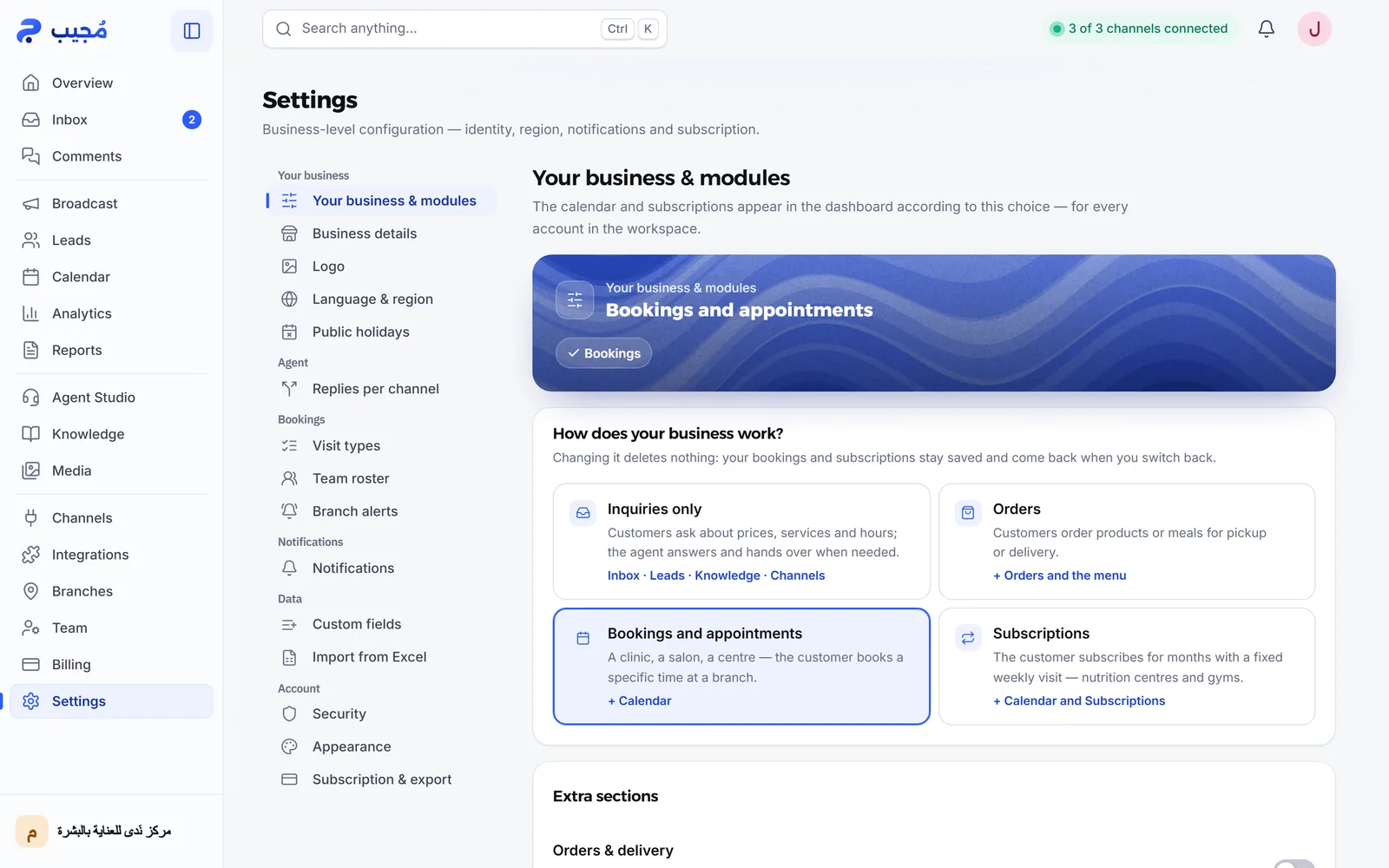
How do I choose how my business works?
Section titled “How do I choose how my business works?”Pick the closest answer under How does your business work?, and the dashboard shows the sections your business needs and hides the rest, for every account in the workspace.
- Open Settings, then Your business & modules.
- Choose one of the four options. Your choice saves at once.
| Option | What it turns on in the dashboard |
|---|---|
| Inquiries only | Inbox, Leads, Knowledge and Channels, which every option has |
| Orders | Plus Orders and Menu & products |
| Bookings and appointments | Plus Calendar |
| Subscriptions | Plus Calendar and Subscriptions |
- Your choice also shapes what the agent does: it books appointments only while the calendar is on, and takes orders only while the orders section is on.
- Changing the choice deletes nothing: bookings and subscriptions stay saved and come back when you return to the option that shows them.
- Until something is chosen, every section shows.
- If you choose bookings while your branches have no booking times, the calendar stays off until you set the times in Branches; then it turns on by itself.
How do I turn on orders for a business that also books appointments?
Section titled “How do I turn on orders for a business that also books appointments?”Turn on Orders & delivery in the Extra sections panel, inside the same Your business & modules section.
- When it is on, Orders and Menu & products appear, and the agent takes orders from your menu only.
- When it is off, both pages disappear and the agent stops taking orders; the menu and past orders stay saved.
- Setting up the menu and delivery is covered in Orders and the menu.
What applies to my device, and what to the whole business?
Section titled “What applies to my device, and what to the whole business?”Interface language, time format and appearance are yours on this device; the time zone and currency apply to the whole business.
| Setting | Applies to | Note |
|---|---|---|
| Interface language | This device | The agent’s reply language is set in Agent Studio |
| Time format | This device | Everyone on your team picks on their own device |
| Timezone | The whole business | It drives the agent’s clock, reminders and the calendar |
| Display currency | The whole business | Display only; prices in your knowledge base stay as written |
Do some sections depend on my subscription?
Section titled “Do some sections depend on my subscription?”Yes. Some plans do not include the Messenger and Instagram channels, campaigns or team accounts, and you see a note saying so when you try to use them. Some features are switched on per business, on request, such as team accounts. Plans and what they include are on the pricing page.
At the bottom of the page you find Related pages: links to channels, branches, the agent’s settings and its voice replies, including Replay the setup guide, which rebuilds your current agent with the guided wizard instead of creating a new one.
Frequently asked questions
Does changing how my business works delete my bookings or subscriptions?
No. Bookings and subscriptions stay saved, and come back as they were when you return to the choice that shows them.
Why can't my staff see the Settings page?
Because Settings is for the owner and admins only, whatever permissions a staff account holds.
Does the display currency change the prices in my knowledge base?
No. It is for the dashboard's display only; prices in your knowledge base stay as you wrote them.
Where do I change the agent's dialect and language?
In Agent Studio. Language and personality belong to the agent itself, not to the business settings.
Why is there no calendar even though I chose bookings?
Because your branches have no booking times yet. Set them on the Branches page and the calendar turns on by itself.