
Team permissions in Mujib, staff accounts, roles and branches
Team permissions in Mujib decide what each staff member can see and do in the dashboard. You give every employee their own account with a username and password, pick the pages it opens, and can tie it to one branch. Team accounts are available on request, and your subscription sets how many seats you get.
Whatever concerns the whole business, such as billing, settings and integrations, stays with the owner and admins, whatever permissions a staff account holds.
Which roles does a Mujib workspace have?
Section titled “Which roles does a Mujib workspace have?”There are three roles: owner, admin and staff. The owner and admins hold every permission; a staff account holds only what you grant it.
| Role | How they sign in | What they can do |
|---|---|---|
| Owner | With their email address | Everything, including Billing, Settings and Integrations |
| Admin | With their email address | Whatever the owner can. Admins are not created from the Team page; contact the Mujib team if you need one |
| Staff | With a username and password | The pages you grant, and only their branch’s data when you scope them to a branch |
On the Team page the owner and admins read Full access, and their accounts cannot be edited or deleted there.
How do I add a staff account?
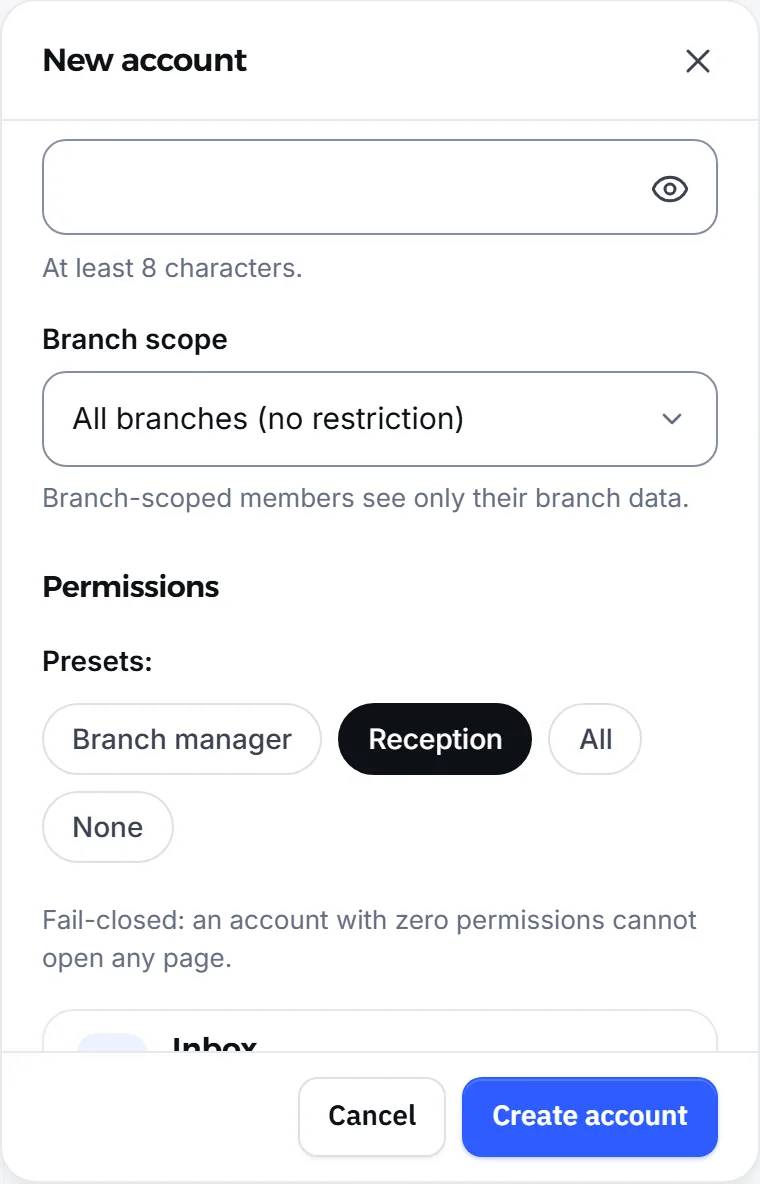
Section titled “How do I add a staff account?”You add it from the Team page in two parts: the sign-in details, then the permissions.
- Open Team and press Add account.
- Under Account, type the Name your team will see.
- Type a Username. It starts with a lowercase English letter, uses only lowercase letters, digits and
.,_or-, and is 3 to 30 characters long. - Type a Password of at least 8 characters.
- Choose the Branch scope: one branch, or All branches (no restriction).
- Under Permissions, pick a preset or tick permissions one by one.
- Press Create account, then hand the employee their username and password.
Which permissions can I grant?
Section titled “Which permissions can I grant?”Each permission opens a page or allows one kind of action, and an account with no permissions opens no page at all. Every new account starts closed, and you open what it needs.
| Permission | What it opens |
|---|---|
| View conversations | The Inbox and Comments pages |
| Reply to customers | Replying to customers from the inbox, and sending replies to comments |
| View bookings | The Calendar page |
| Manage bookings | Adding and changing bookings |
| View leads | The Leads page, and Subscriptions to look at |
| Manage leads | Editing leads, which also covers selling subscriptions and recording their payments |
| Sell subscriptions & record payments | Selling subscriptions and recording payments; it needs View leads to open the page |
| View analytics | Overview, Analytics and Reports |
| Send broadcasts | The Broadcast page |
| Manage knowledge | The Knowledge page |
| Manage agents | The Agent Studio page |
| Manage media | The Media page |
| Manage channels | The Channels page |
| Manage branches | The Branches page |
| Manage team | The Team page, to manage other accounts, not their own |
| Manage settings | It does not open Settings; that page is for the owner and admins only |
When your business takes orders, two more permissions appear: one to see orders and move them through their stages on Orders, and one for Menu & products, delivery, order settings and cancelling orders. And a page only appears at all when your business uses its section, such as the calendar or subscriptions.
What are the presets?
Section titled “What are the presets?”A preset ticks a set of permissions in one press; you can then adjust it.
- Branch manager: view and reply to conversations, view and manage bookings, view and manage leads, and view analytics.
- Reception: view and reply to conversations, and view bookings.
- All: every permission your workspace offers.
- None: no permissions, so the account opens no page.
How do I limit a staff member to one branch?
Section titled “How do I limit a staff member to one branch?”Choose the branch in Branch scope, and the account sees only that branch’s data in the inbox, calendar, leads, analytics, subscriptions and orders.
- Pages that work on the whole business never show for a branch-scoped account, even with the permission: Broadcast, Team and Menu & products.
- The Team page lists accounts by branch, plus an All branches group for the owner, admins and accounts with no branch.
- When you move someone to another branch, they are asked to sign in again so they see their new branch.
How does a staff member sign in?
Section titled “How does a staff member sign in?”They open the sign-in page, type their username into Email or username, then their password. No email address is needed.
- Team accounts get no password-reset link. If someone forgets their password, open their account and type a New password; leave the field empty to keep the current one.
- Two-step verification is not available for username accounts, because it sends its code by email. See Two-factor authentication.
- Each staff member turns on notifications for their own device from their account menu. See Notification settings.
How do I disable or delete a staff account?
Section titled “How do I disable or delete a staff account?”Disabling blocks sign-in and keeps the account; deleting removes it and frees its seat.
- Disable: open the account and turn on Disable account (block sign-in). They are signed out of every device at once, and the account shows Disabled until you turn it back on.
- Delete: press the delete button beside the account and confirm. They lose access immediately; conversations and customers stay as they were.
- Change the password, username or branch: they are signed out of their devices and sign in again with the new details.
Why can’t I find the Team page, or add an account?
Section titled “Why can’t I find the Team page, or add an account?”Team accounts are switched on per business, on request: if Team is not in your menu, ask the Mujib team to turn it on.
| What you see | What it means |
|---|---|
| No Team in the menu, or the message Team accounts are not enabled | The feature is not on for your business yet |
| A note that your plan has one account | Your current plan does not include team accounts |
| You have reached your seat limit — upgrade your plan to add more. | You have used every seat your subscription allows |
The Seats bar at the top of the page shows the seats in use out of those available. Only staff accounts take seats, and deleting one frees its seat. Plans and what they include are on the pricing page; how billing works is in How billing works.
Frequently asked questions
Does a staff member need an email address to sign in?
No. A staff account signs in with the username and password you created for it, typed into the same email-or-username field on the sign-in page.
A staff member forgot their password. What do I do?
Team accounts get no reset link. Open their account on the Team page and type a new password; they then sign in again with it.
Does the owner's account take a seat?
No. Only staff accounts take seats; the owner and admins do not count.
Is a staff member's work deleted when I delete their account?
No. They lose access immediately, and conversations and customers stay exactly as they were.
Why is there no Team page in my dashboard?
Team accounts are switched on per business, on request, and they also depend on your subscription. Ask the Mujib team to turn them on.