
Notification settings in Mujib, WhatsApp, phone and email alerts
Notification settings in Mujib decide who hears about what, and where: an instant WhatsApp alert to you or your team when a conversation needs a person, WhatsApp messages to your branch numbers about bookings, notifications on the phone of everyone who turned them on, and email to the owner. None of it reaches your customers.
You set them in Settings under Notifications, plus Branch alerts when your business books appointments or sells subscriptions.
Where do Mujib notifications go?
Section titled “Where do Mujib notifications go?”Notifications travel six ways, each with its own content and its own recipients.
| Route | What it carries | Who gets it |
|---|---|---|
| Dashboard bell | A new message, a handoff request, a send failure | Anyone who opens the dashboard |
| Push notifications on this device | Handoff requests, new messages and agent bookings | Everyone who turned them on for their device, by permission |
| Notification WhatsApp number | Handoff requests when you have no rota, the scheduled report, spam alerts and the conversation allowance running out | The number you type |
| Alert rota (taking turns) | Handoff requests, one person at a time | The people you add |
| Branch WhatsApp | New bookings, appointment changes and the daily subscriptions summary | Each branch’s number |
| Billing, a WhatsApp number disconnecting, and a handoff whose alert reached nobody | The owner |
Every WhatsApp alert goes out from your business’s WhatsApp number connected to Mujib; with no connected number, none go out.
How do I set the alert number and the report?
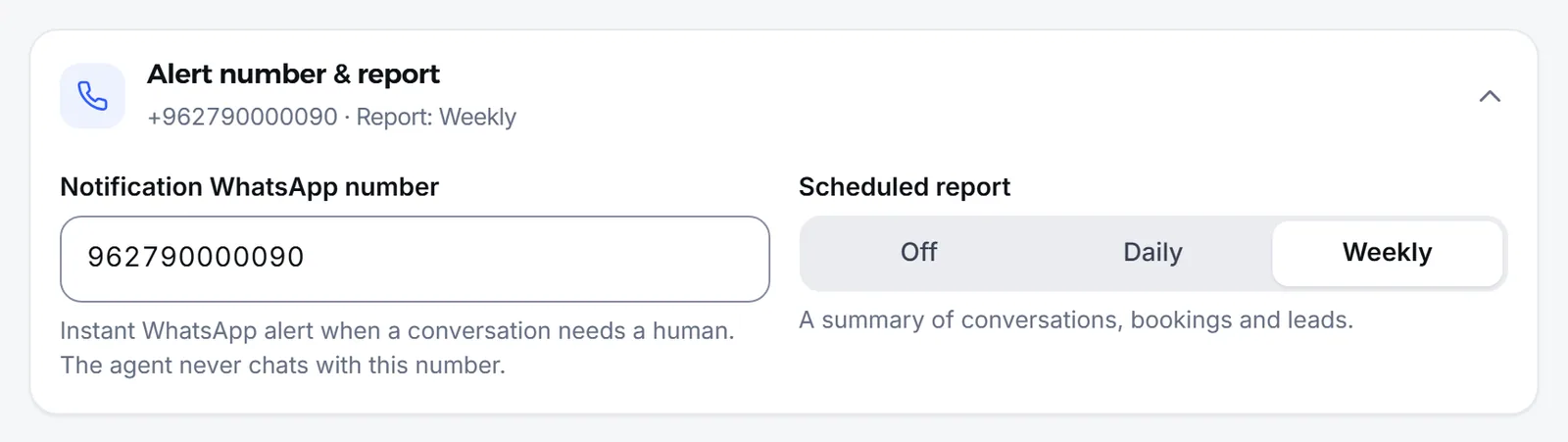
Section titled “How do I set the alert number and the report?”Type a number you watch into Notification WhatsApp number; it saves as soon as you leave the field.
- Open Settings, then Notifications, then Alert number & report.
- Type the number with its country code, for example
962790000000. - Choose the Scheduled report: Off, Daily or Weekly. The report sums up conversations, bookings and leads, and always goes to this number.
How do I share handoff alerts across my team?
Section titled “How do I share handoff alerts across my team?”Add people to the Alert rota (taking turns), and each handoff alert goes to one of them in turn rather than to all of them.
- In Notifications, open Alert rota (taking turns) and press Add someone.
- Type the person’s name and WhatsApp number with its country code.
- Choose the channels they receive alerts from: WhatsApp, Messenger or Instagram. Choose none and they receive all of them.
- Type a weight, their share of the alerts: someone with double the weight gets twice as many. Then press Save.
- When the rota is empty, or nobody in it covers the conversation’s channel, the alert goes to Notification WhatsApp number.
- Press Pause to take someone out for a while without deleting them; the others share their turns.
- What happens during a handoff is covered in Human handoff.
How do phone notifications work?
Section titled “How do phone notifications work?”Each person turns notifications on for their own device and picks which kinds they want: Handoff request, New message, and New booking by the agent when your business books appointments.
- The owner and admins find them under Push notifications on this device in this section; a staff member finds them in their account menu as Notifications on this device.
- Handoff and new-message notifications reach people with inbox permission; booking notifications reach people who can see the calendar. A branch-scoped staff member gets their branch’s.
- Installing the app on a phone and enabling notifications on iPhone and Android are covered in The Mujib app and conversation notifications.
What are branch alerts?
Section titled “What are branch alerts?”Branch alerts are WhatsApp messages to each branch’s number about its bookings and its customers’ subscriptions, set by the owner and admins under Branch alerts.
- Booking messages: New booking by the AI agent, New booking by staff and Moved or cancelled by the customer. For staff bookings you choose: all of them, only those entered by someone outside the branch, or none.
- Daily subscriptions summary: one daily message with Subscriptions ending soon and Payments due, when your business sells subscriptions.
- Per branch: each branch follows the general setting, or gets one of its own.
The message goes to the branch’s WhatsApp number on the Branches page, or to the branch manager’s phone when it has no number. The section lists any branch the alert cannot reach because it has no number. Anything about subscriptions with no branch goes to Notification WhatsApp number. Press Save branch alerts after any change.
When do I get an email?
Section titled “When do I get an email?”Mujib emails the owner about the account itself, not about day-to-day conversations.
- Billing: your trial starting, nearly over and over; your subscription going live; a payment received; the last day to pay coming up and passing; the conversation allowance running out.
- A WhatsApp number disconnected: when your number stays disconnected from Mujib for a while, so you can reconnect it.
- A handoff nobody heard about: if the agent hands a conversation over and its alert reached no number or device, an email follows a few minutes later saying a customer is waiting, without their name or words. These emails have a daily limit; the rest wait in the inbox.
- Security: password reset links, and the codes and notices of two-factor authentication.
How do I check that alerts were delivered?
Section titled “How do I check that alerts were delivered?”Open the Notification log in the notifications section to see each alert’s kind, recipient, time and status.
| Status | What it means |
|---|---|
| Sent | The alert went out from your business number |
| Failed | It did not arrive; the reason shows under it |
| Skipped | It was never sent, for example The notification number is empty or The workspace's WhatsApp is not connected |
Still missing an alert? See Notifications not arriving.
Frequently asked questions
Does any of this reach my customers?
No. Everything in the notifications section goes to your team and your branch numbers only; none of it reaches your customers.
Which number do the WhatsApp alerts come from?
From your business's WhatsApp number connected to Mujib. So you need a connected WhatsApp number, and an alert number that is a different one.
Does a handoff alert reach the whole team on WhatsApp?
No. It reaches one person in turn from the alert rota, or the alert number when the rota is empty. Phone notifications, though, reach everyone who turned them on and works the inbox.
Who can change the notification settings?
The owner and admins, because the Settings page is theirs. Each staff member chooses their own device notifications from their account menu.
How do I know an alert was delivered?
Open the notification log in the same section. It shows each alert's kind, recipient and status, and why it was skipped if it was not sent.