
Turn off the WhatsApp AI agent everywhere, on one channel or one chat
You can turn off the WhatsApp AI agent at three levels in Mujib: the master switch stops all your agents on every channel, a channel switch stops replies on one number or page, and a conversation switch stops the agent with one customer. In every case messages still reach the inbox and your team answers them.
Nothing is deleted when you turn the agent off, and you turn it back on from the same place at any time.
What is the difference between the master switch, a channel and a conversation?
Section titled “What is the difference between the master switch, a channel and a conversation?”The difference is reach: every channel, one channel, or one customer.
| Level | Where | What it stops | Who can change it |
|---|---|---|---|
| Master switch | Agent Studio | Every agent on every channel | The owner and admins |
| Channel | Settings → Replies per channel | The agent’s replies on one channel | Anyone with Manage channels |
| Conversation | The conversation itself in Inbox | The agent’s replies to one customer | Anyone with Reply to customers |
The agent answers a customer’s message only when all three levels are on. Turning any one of them off is enough to stop it.
How do I stop the WhatsApp AI agent on every channel?
Section titled “How do I stop the WhatsApp AI agent on every channel?”With the master switch at the top of the Agent Studio page. It stops all your agents at once on WhatsApp, Messenger and Instagram.
- Open Agent Studio.
- On the Master switch · all agents card, press the Master switch — all agents switch.
- The Turn the agent off? dialog opens. Press Stop replies.
- The card’s title changes to Agent is paused.

To turn it on, press the same switch, then Turn replies on in the Turn the agent on? dialog. Mujib asks you to confirm both ways, so one stray tap never stops or starts the agent.
How do I disable WhatsApp auto reply on one channel?
Section titled “How do I disable WhatsApp auto reply on one channel?”From Replies per channel in Settings. The agent stops on that channel only and keeps going on your other channels.
- Open Settings and go to Replies per channel.
- On the channel’s row, switch off Auto-reply.
- The Turn off auto-reply on this channel? dialog opens. Press Turn off.
While the master switch is off, this section shows The agent is off on every channel from the main switch, and the channel settings cannot be changed until you turn it back on.
The same setting is on the Channels page: press Edit under the channel to open Replies & agent. Every conversation from that channel then shows the line Auto-reply is off on this channel.
This helps, for example, when one WhatsApp number is always answered by a person and another should be answered by the agent.
How do I stop the agent in one conversation only?
Section titled “How do I stop the agent in one conversation only?”From the conversation itself in Inbox, with Agent replies here. The agent stops with that customer only and carries on with everyone else.
- Open the conversation in Inbox.
- On a computer, switch off Agent replies here in the bar above the messages. On a phone, press the status line at the top of the conversation to open Conversation actions, then switch off the same switch. It then reads Off here only — other conversations are not affected underneath.
- The conversation’s state changes to Agent off.
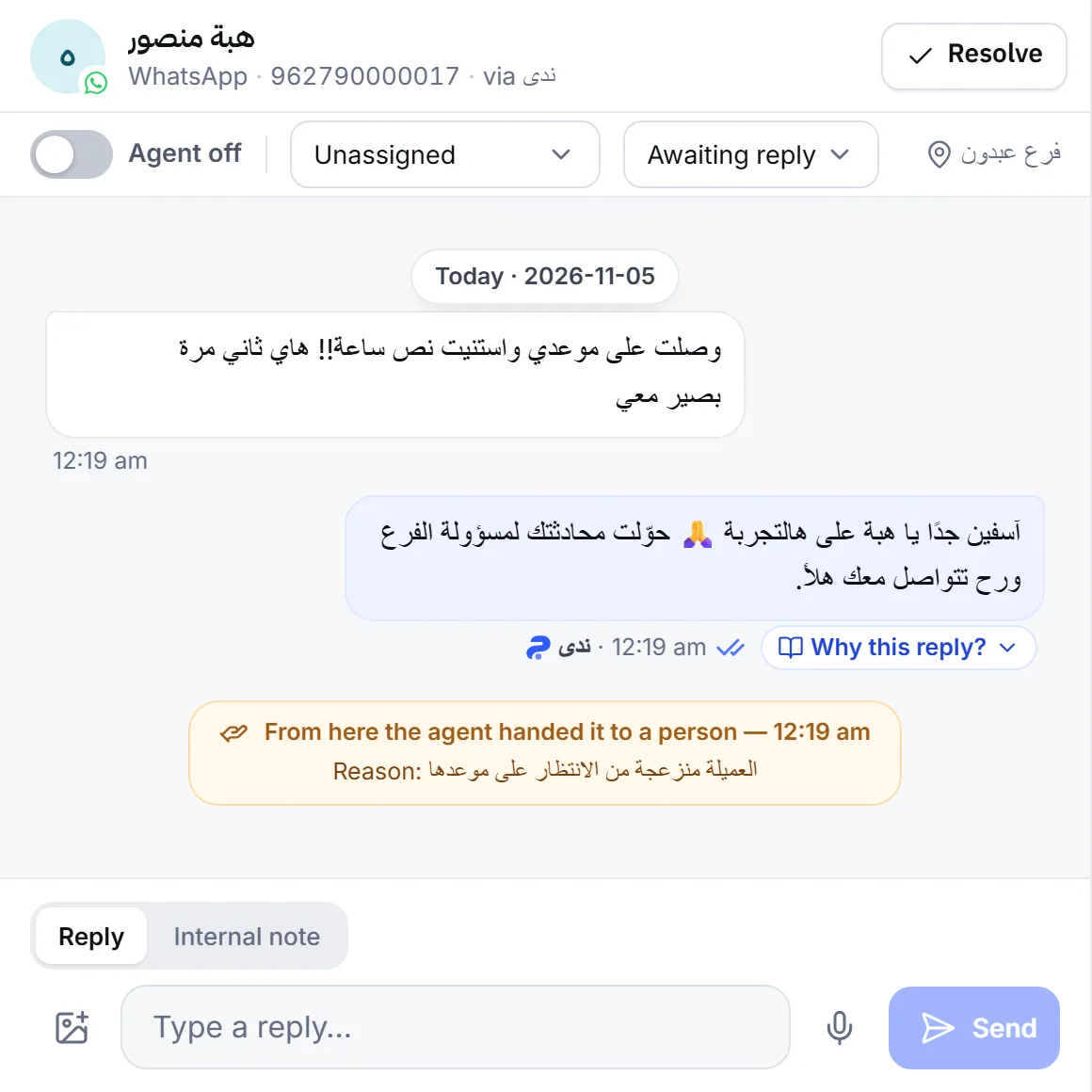
To bring the agent back, press Hand back to the agent or switch it on again. The agent answers the customer’s next message.
The agent also stops in a single conversation by itself in two cases: when it hands the conversation to a person, and when someone on your team replies in it, from the Mujib dashboard or from the business phone and the channel’s own apps. See Human handoff and Your reply pauses the agent.
What happens to messages while the agent is off?
Section titled “What happens to messages while the agent is off?”Every message still reaches the inbox, and your team answers it. Nothing is lost.
- Notifications: when the agent is not going to answer a message, you and your team members who work the inbox get a phone notification about it, if notifications are on.
- When you turn it on: the agent answers new messages only. It does not go back to messages that arrived while it was off.
- Conversations with your team: turning the master switch or a channel back on does not return to the agent a conversation where you switched it off or that your team took over. Those stay with your team.
- Automatic resume: it does not run while the master switch or the channel is off. See AI agent resume.
Frequently asked questions
Does turning the agent off delete anything?
No. No conversation or setting is deleted. Messages keep reaching the inbox, and you turn the agent back on from the same place.
Does the agent answer messages that arrived while it was off?
No. When you turn it on it answers new messages only, so you or your team reply to what came in before.
I switched the agent off in one conversation. Will it come back by itself?
No. Switching it off in a conversation is a decision you made, so automatic resume never undoes it. It comes back when you switch it on there.
Does replying to a customer from my phone stop the agent?
Yes, in that conversation only, so the agent does not reply at the same time as you.
Why can't I move the master switch?
Turning the agent on and off for every channel is for the owner and admins only. Everyone else sees a note saying so under the switch.