
A unified inbox for WhatsApp, Instagram and Messenger in Mujib
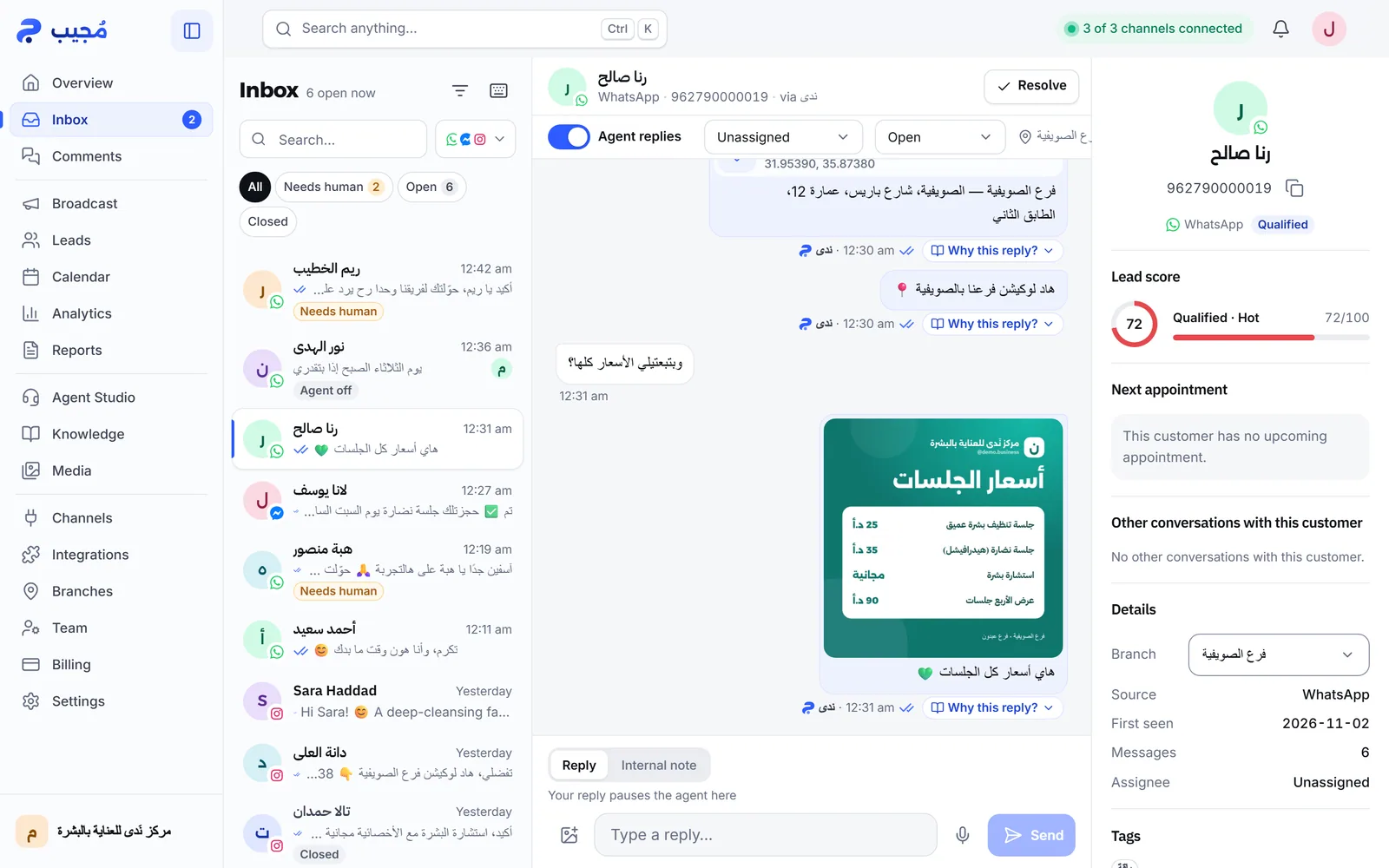
The Inbox page in Mujib is a unified inbox: your customers’ WhatsApp, Messenger and Instagram conversations in one list. You see what each customer wrote and what the agent answered, step in with a reply or an internal note, and close or reopen conversations.
The page has three parts: the conversation list, the open conversation, and the Details panel. On a wide screen all three sit side by side; on a phone the conversation opens over the list, and a button in its header shows the customer’s details. New messages appear the moment they arrive, without a refresh.
What does the conversation list show?
Section titled “What does the conversation list show?”Each row is one conversation with one customer on one channel, newest first. A row shows the customer’s name or number, the channel’s logo, the last message and its time, the unread count, and a small avatar of the teammate it is assigned to, if any. The list header shows how many conversations are open right now.
Under the name, a status tag appears when one applies:
| Tag | What it means |
|---|---|
| Needs human | The agent handed the conversation to your team, and the customer is waiting for a person |
| Agent off | The agent does not reply in this conversation only; other conversations are not affected |
| Possible spam | The spam detector stopped auto-replies here. See Spam detection |
| Out of allowance | A new customer the agent did not take because your subscription allows no new conversations right now, so it waits for your team |
| Closed | A finished conversation |
Above the list sit the status buttons All, Needs human, Open and Closed, the search box and the channel filter. They are covered in Search and filter conversations.
What do I see inside an open conversation?
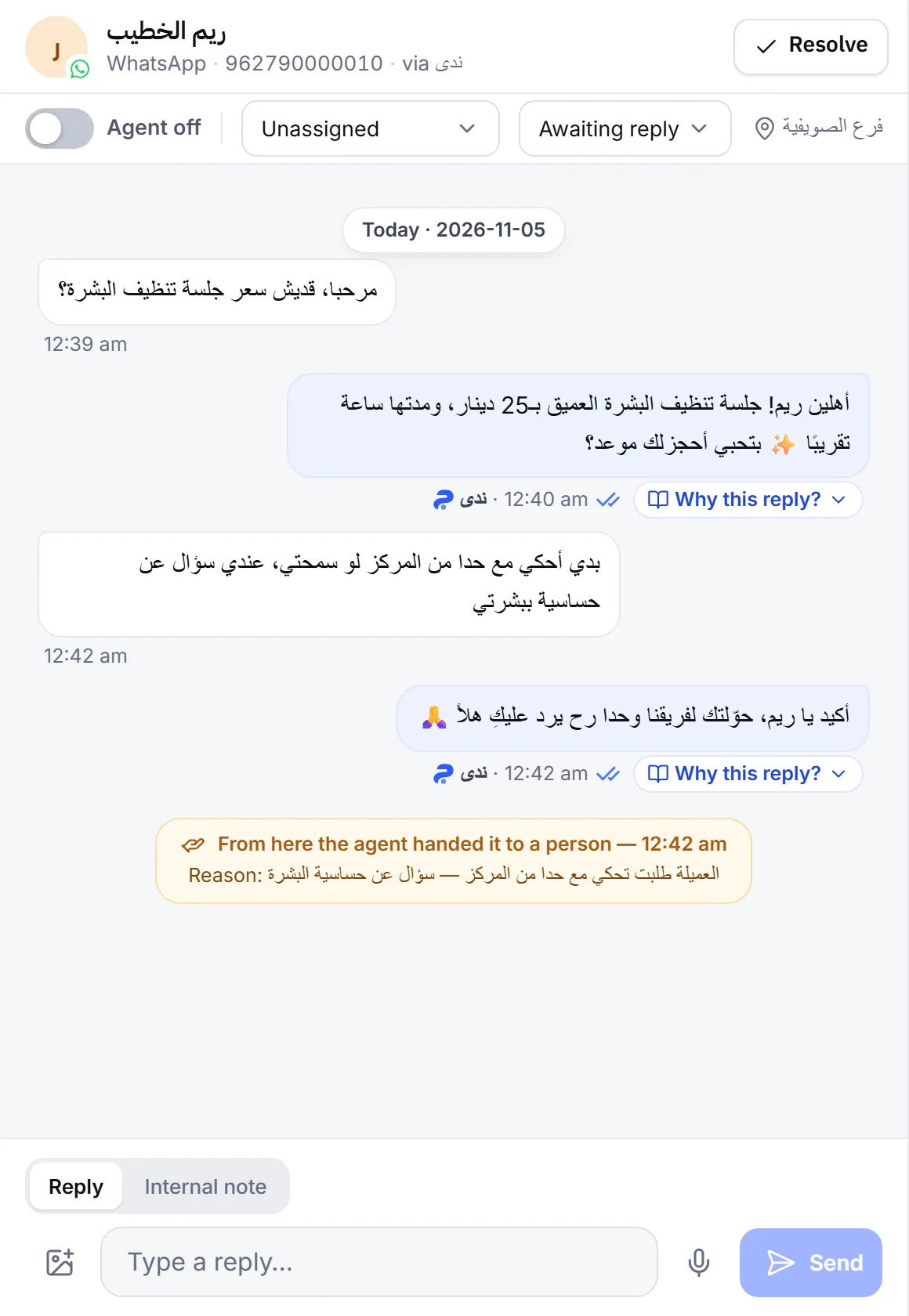
Section titled “What do I see inside an open conversation?”Messages appear in order with a marker for each day, and each outgoing message carries its sender: the agent’s name, or Staff when someone on your team wrote it.
- The header: the customer’s name, the channel, their number with Copy number, and the name of the agent handling it after via.
- The control bar: the Agent replies here switch, the Assign to teammate menu, the Status menu and the branch. On a phone they sit in the status line under the header and behind Conversation actions.
- The handoff marker: when the agent hands the conversation to a person, a From here the agent handed it to a person line appears with the reason. See Why the agent handed off.
- Voice notes play inside the conversation, with their Transcript when there is one.
- Why this reply? under each agent reply shows the Knowledge used for that reply, and you rate it Helpful or Not helpful. Accounts with Manage agents also see Teach the agent to correct it. See Agent corrections.
- Earlier conversations: when the customer has other conversations, they appear above the messages, to open or to read in place. Load older messages fetches older messages of the same conversation.
How do I reply to a customer from the Mujib dashboard?
Section titled “How do I reply to a customer from the Mujib dashboard?”You type in the reply box under the conversation, and the reply goes out from your own business number or Page.
- Open the conversation from the list.
- Make sure the Reply tab is selected, then type your reply.
- Press Send. On a computer, Enter sends and Shift with Enter adds a new line.
- To send a photo press Attach an image; to record a voice note press Record a voice note.
Your reply pauses the agent in this conversation so the two of you never answer the customer at once; see Your reply pauses the agent. If a message is not delivered, the reason shows under it with Send again.
How do I close or reopen a conversation?
Section titled “How do I close or reopen a conversation?”Press Resolve in the conversation header. It moves to Closed, and Undo stays on screen for 6 seconds in case you tapped by mistake.
- To reopen it, press Reopen.
- If the customer writes again within 24 hours of the last message, the same conversation reopens with its history, notes and assignee. After that, a new conversation starts.
- The Status menu has three states: Open, Awaiting reply and Closed. Awaiting reply is what the list tags Needs human.
- A conversation cannot be reopened while a newer conversation with the same customer is open on the same channel; continue in the newer one.
What does the customer panel show?
Section titled “What does the customer panel show?”The Details panel shows what Mujib knows about the customer, beside the conversation:
- Lead score and their stage as a lead.
- Next appointment, when your business uses bookings.
- The branch, which you can change here, the source, the first contact date, the message count and the Assignee.
- Tags, and AI memory: a summary of what the agent remembers about this customer.
- Internal notes for your team, which the customer never sees. See Assign conversations and internal notes.
- View full profile opens the customer on the Leads page.
Who can see conversations and reply to them?
Section titled “Who can see conversations and reply to them?”Owner and Admin accounts see and answer every conversation. A Staff account depends on two permissions: View conversations to read, and Reply to customers to reply, assign, write notes and close conversations.
- Staff tied to a branch see their branch’s conversations plus the ones not assigned to any branch.
- Team accounts are available on request, and how many you get depends on your subscription. See Team and permissions.
Frequently asked questions
Does the customer know I took over from the agent?
They get no notice of it. Your reply reaches them as an ordinary message from your business number or Page, just like the agent's replies.
What does the needs-a-person tag mean?
“Needs human” means the agent handed the conversation to your team and the customer is waiting for a person. It clears by itself when someone on your team replies.
Is a conversation deleted when I close it?
No. Closing only moves it to “Closed”; its messages and notes stay. If the customer writes again within 24 hours, the same conversation reopens.
Can I send a photo or a voice note from the dashboard?
Yes, from the reply box under the conversation, on WhatsApp, Messenger and Instagram.
Which team accounts can reply?
Any account with the “Reply to customers” permission. An account with only “View conversations” can read but not reply.