
Upload PDF, Word and Excel files to your AI agent
When you upload PDF, Word and Excel files to Mujib, their content joins your agent’s knowledge with no copying by hand. You upload the file on the Knowledge page, Mujib reads its text and splits it into sections, and the agent starts answering from it once the file is Ready.
Files suit long, stable content: a service guide, subscription terms, product lists, a document of frequent questions. Information that changes often, such as prices and offers, belongs in knowledge base entries, which you edit in place and can give an end date.
Which files can the agent read?
Section titled “Which files can the agent read?”Mujib accepts PDF, DOCX, XLSX, XLS, CSV, TXT and MD files, up to 15 MB each, and reads only their text.
| File | What Mujib reads from it |
|---|---|
| The text written in it. A scanned PDF is images, not text, so it cannot be read | |
| Word (DOCX) | The document’s text. Old Word files with the DOC extension are not accepted |
| Excel (XLSX and XLS) | Every sheet in the file, row by row |
| CSV | The table, row by row |
| Text (TXT and MD) | The text as it is |
How do I upload a file to the knowledge base?
Section titled “How do I upload a file to the knowledge base?”You upload files on the Knowledge page, one at a time. Team members need the Manage knowledge permission.
- Open Knowledge and press Upload document, or open the Documents tab and press Choose a file from your device.
- Choose the file on your device. The line Uploading document… shows while Mujib uploads the file and reads its text.
- When it finishes you see Document uploaded, and the file appears in the list as Ready, with its number of sections beside it.
- The sections reach the agent right away, from the next reply.
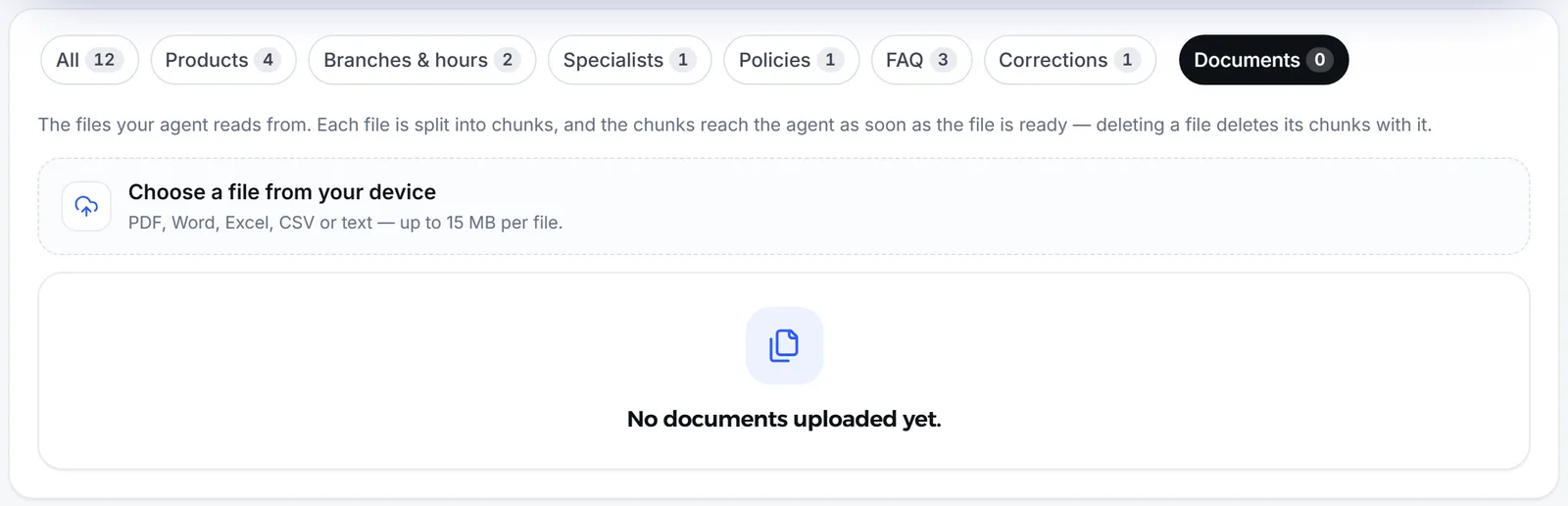
If you open the page while a file is being read, it shows as Processing. If a file could not be read, it shows Failed with the reason under it; the fixes are in the last section of this page.
What happens to a file after I upload it?
Section titled “What happens to a file after I upload it?”Mujib splits the file’s text into sections, and each section becomes a Document entry in the knowledge base, titled with the file name and the section number. On each reply the agent reads the sections closest to the customer’s question, not the whole file.
- The sections are under the Products tab of Knowledge, and you can open any section and edit its text.
- A section’s type is fixed: it cannot become a question or a program.
- Deleting the file from the Documents tab deletes all its sections, so the agent stops using them from the next reply.
- Mujib does not merge two copies of the same file. When you upload an edited version, delete the old one first, or the content of both stays.
How many files can I upload?
Section titled “How many files can I upload?”Your business’s knowledge holds up to 50 files, with a combined size of up to 250 MB. At the limit, a message asks you to delete an old file before uploading a new one.
Files go up one at a time: if Mujib is reading a file for your business, wait for it to finish, then upload the next. If a message says you reached today’s upload limit, your current files are saved and you can continue later.
Why did my file fail?
Section titled “Why did my file fail?”A file fails in one of two ways: it is refused at upload, with a message right away and nothing saved, or it uploads but Mujib finds no usable text in it, and it shows Failed in the list with the reason under it.
| What you see | Cause | Fix |
|---|---|---|
| Failed: no readable text | Usually a scanned file stored as images | Upload it as Word, or as a PDF you can copy text from |
| Failed: the text came out as unreadable characters | Usually a damaged font in the file | Upload it as Word or plain text |
| Failed: more text than can be read in full | The file is very long | Split it into smaller files and upload them again |
| A message at upload: the file is too large | Bigger than 15 MB | Split it, or remove its images |
| A message at upload: unsupported type | Not one of the accepted types | Save it in one of the types above |
| A message at upload: storage reached its limit | You hit the file limit | Delete an old file and try again |
Still stuck? See File not read.
Frequently asked questions
Can the agent read a scanned PDF?
No. A scanned file is stored as images, not text, so Mujib finds nothing to read and the file shows “Failed”. Upload it as Word, or as a PDF you can copy text from.
How large can one file be?
Up to 15 MB per file. If a file is bigger, or holds more text than can be read in full, split it into smaller files.
Does the agent send the file itself to customers?
No. The agent reads the file's text and answers from it in its own words, but does not send the file. The agent can only send images from the media library.
How do I update a file whose content changed?
Delete the old file, then upload the new version. If you upload the new version without deleting the old one, the content of both stays in the knowledge base.
Does Mujib accept old Word files with the .doc extension?
No. It accepts modern Word files (.docx) only. Open the old file in Word, save it as .docx, then upload it.