
Assign conversations to your team and add internal notes in Mujib
To assign conversations in Mujib, pick the teammate who handles a conversation from the Assign to teammate menu: their name shows on it, and they find it under Assigned to me. Alongside assignment you write internal notes that your team reads and the customer never receives.
How do I assign a conversation to a teammate?
Section titled “How do I assign a conversation to a teammate?”You pick the teammate from the Assign to teammate menu inside the conversation.
- Open the conversation from Inbox.
- On a computer, choose the teammate from Assign to teammate in the control bar above the conversation. On a phone, press Conversation actions and choose them from the same menu.
- The teammate’s name shows in the conversation’s status line, their small avatar appears on its row in the list, and they appear as Assignee in the Details panel.
To remove the assignment, choose Unassigned from the same menu.
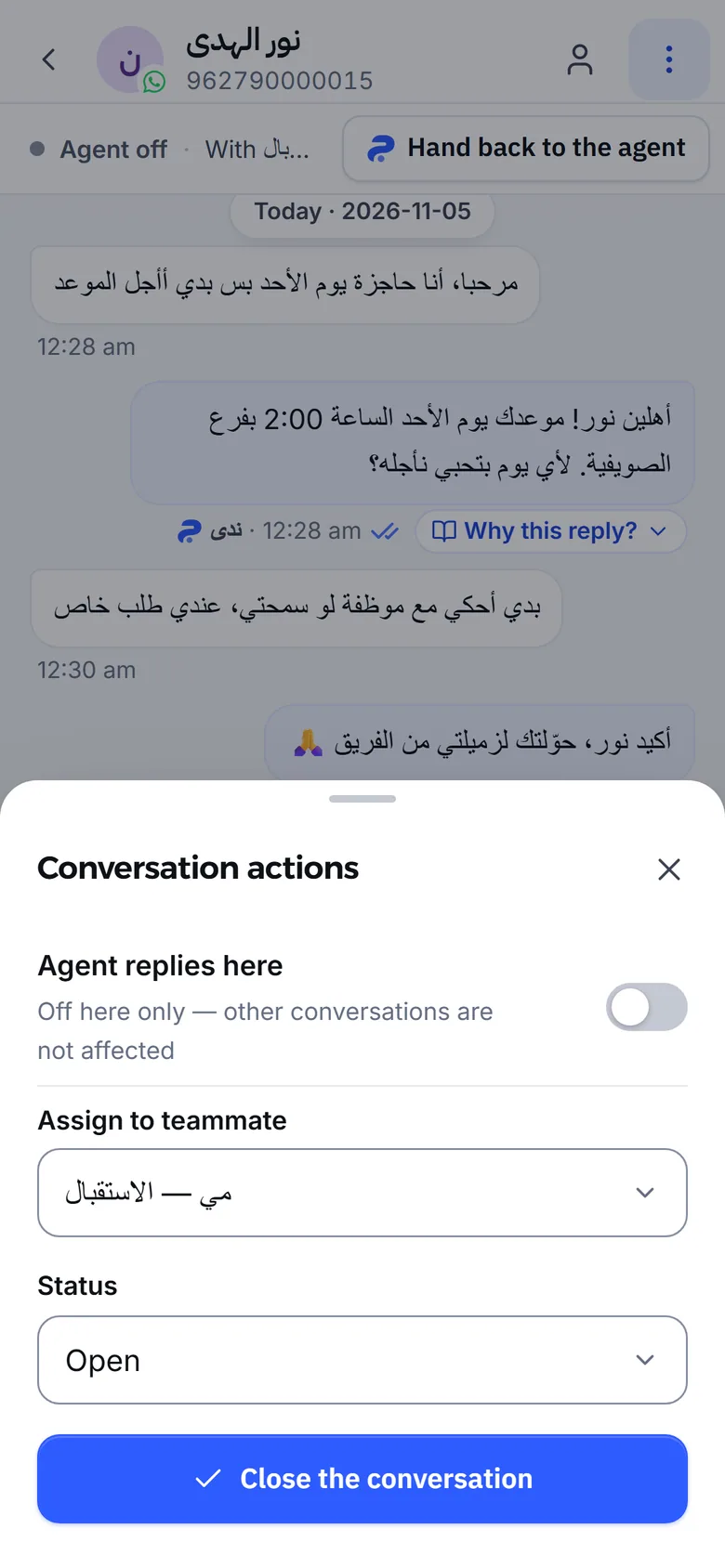
- Assigning alone does not stop the agent. The agent stops when the teammate replies to the customer, or when you turn off Agent replies here. See Your reply pauses the agent.
- Assigning sends no alert. Each teammate finds their conversations by choosing Assigned to me in the filters. See Search and filter conversations.
- Assigning needs the Reply to customers permission; every account that can see the conversation can see who it is assigned to.
Who appears in the assign menu?
Section titled “Who appears in the assign menu?”The menu lists your team’s active accounts; a disabled account does not appear. If your account is tied to a branch, you see your branch’s teammates and the accounts tied to no branch, such as the owner’s.
If your teammates are missing, your business most likely has no team accounts yet. Team accounts are available on request, and how many you get depends on your subscription. See Team and permissions.
Does Mujib assign WhatsApp conversations automatically?
Section titled “Does Mujib assign WhatsApp conversations automatically?”Mujib never assigns conversations to people on its own; choosing the teammate is your call. Distributing conversations to branches, though, happens by itself in two cases:
- When the agent hands a conversation to a person: it goes to one branch when the conversation itself points to it, in this order: the branch the customer named in their latest messages, then the branch of their upcoming appointments when they are all at one branch, then the branch whose location the agent sent in the conversation. When the branch is unclear, the conversation stays unassigned to any branch, and every branch sees it.
- When branch staff reply to a conversation with no branch: it moves to their branch, leaving the shared conversations for their branch’s list.
Automatic distribution never changes the branch of a conversation that already has one. For why the agent hands off at all, see Human handoff.
How do I move a conversation to another branch?
Section titled “How do I move a conversation to another branch?”You change the branch from the customer panel beside the conversation.
- Open the conversation, then the Details panel if it is not showing.
- In Branch, choose the new branch, or Not set to return it to the shared conversations.
- Conversation moved confirms the move.
An account tied to no branch, like the owner’s, can move a conversation to any branch. Staff tied to a branch cannot move it to another branch, since it would leave the conversations they can see. Branches themselves are managed on Branches; see Branches and hours.
What are internal notes and who can see them?
Section titled “What are internal notes and who can see them?”An internal note is text you write for your team on one conversation, and it is never sent to the customer on any channel.
| Question | Answer |
|---|---|
| Who sees it? | Everyone who can open this conversation in Mujib |
| Who writes it? | Any account with the Reply to customers permission |
| What shows with it? | Its author’s name and the time it was written, oldest first |
| Can it be edited or deleted? | No, it stays as saved |
| When does it go away? | When the conversation itself is deleted. Closing and reopening do not touch it |
Notes appear in the Details panel under Internal notes, not among the conversation’s messages.
How do I write an internal note?
Section titled “How do I write an internal note?”You write it from the reply box under the conversation, or from the customer panel.
- In the reply box, choose the Internal note tab instead of Reply; the box then shows Add an internal note — the customer never sees this….
- Type the note and press Add.
- Note added confirms it, and the note joins the list.
Or type it in Add internal note… under Internal notes in the customer panel, then press Add.
On Messenger and Instagram, when the window in which Meta allows a reply has closed, the reply box offers Write an internal note so you can record what you want your team to know.
Frequently asked questions
Does the agent stop when I assign a conversation to a teammate?
No. Assigning only says who follows it up. The agent stops when the teammate replies to the customer, or when you switch it off in that conversation.
Is the teammate notified when I assign a conversation to them?
Assigning sends no alert. Teammates find their conversations with the “Assigned to me” filter on the inbox page.
Can the customer see internal notes?
No. A note is never sent on any channel; only people who can open the conversation in Mujib see it.
Can I edit or delete a note?
No. A note stays as it was saved, with its author and time, until the conversation itself is deleted.
Does Mujib assign conversations to staff automatically?
It never assigns them to people. It does place a handed-off conversation in one branch when the conversation points to it, and hands an unassigned one to the branch of the first staff member who replies.