
API keys and authentication: create, send and revoke a key
An API key is a long secret your program sends with every request to the Mujib REST API, so Mujib knows which business is asking and what it may read. You create it on the Integrations page; it always starts with mjb_live_ and travels in the Authorization header.
A key is mjb_live_ followed by 32 random characters. Every key is read-only, carries the scopes you choose, and can be revoked at any time.
How do I create an API key?
Section titled “How do I create an API key?”You create keys in the For developers section of the Integrations page, which only an Owner or an Admin can open.
- Open Integrations from the sidebar.
- Press the API keys card. The For developers section opens at the bottom of the page.
- Press New key.
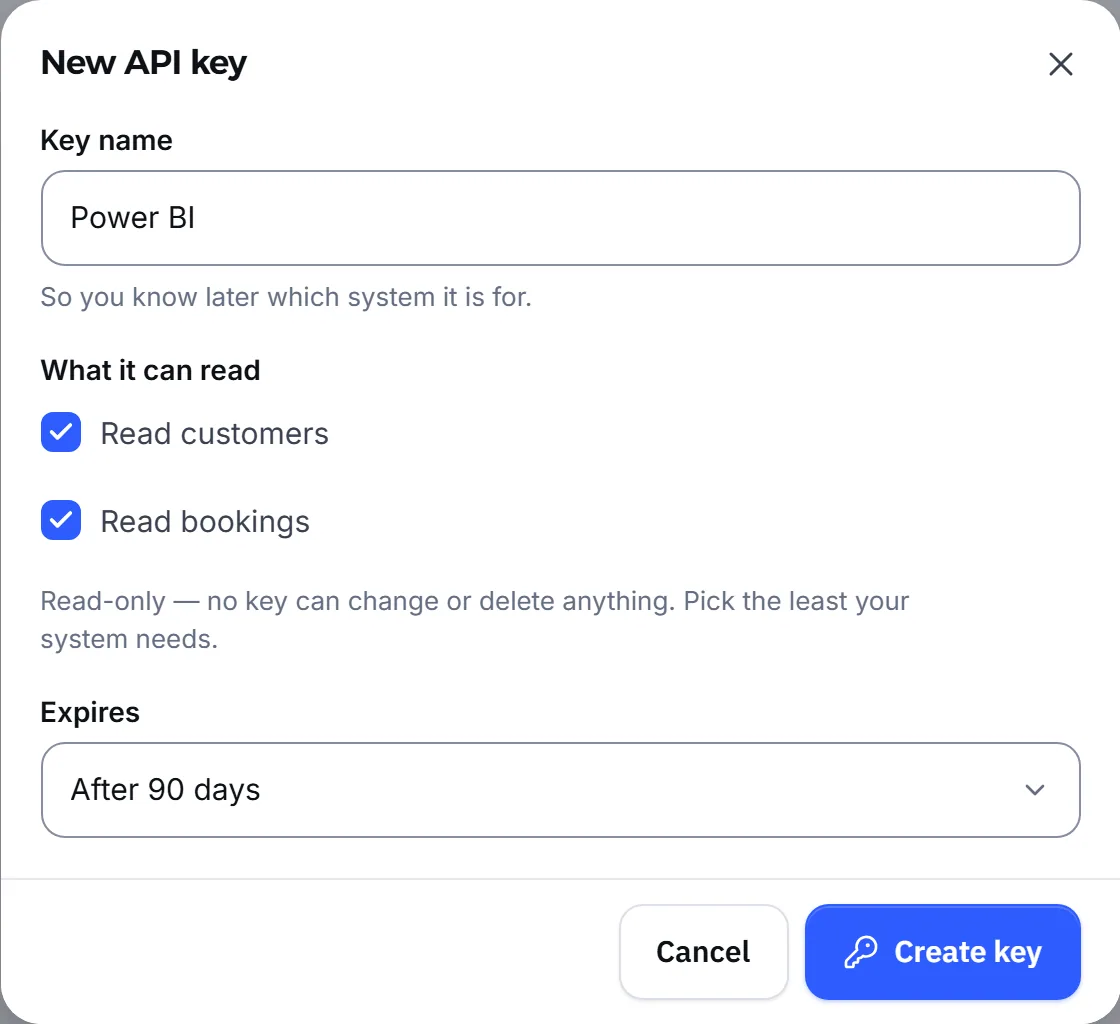
- In Key name, type a name that says which system will use the key, such as “Sales reports”.
- Under What it can read, tick Read customers, Read bookings, or both.
- In Expires, choose After 90 days, After a year or Never expires.
- Press Create key. The key appears under Your key — shown this once. Press Copy the key, store it somewhere safe, then press Done, I've copied it.
Once created, the key appears in the list with its name, a hint made of mjb_live_… and its last four characters, its scopes, when it was last used (or Not used yet) and when it expires.
Which scopes can a key have?
Section titled “Which scopes can a key have?”There are two scopes, both read-only: contacts.read to read customers and bookings.read to read bookings. No scope can change or delete anything.
| Scope | Name in the dashboard | Requests it opens |
|---|---|---|
contacts.read | Read customers | GET /api/v1/contacts and GET /api/v1/contacts/{id} |
bookings.read | Read bookings | GET /api/v1/bookings and GET /api/v1/bookings/{id} |
GET /api/v1/meneeds no scope: any valid key can call it.- A key that lacks the scope a request needs gets a 403 with the code
FORBIDDEN. - Read bookings is offered only when your business uses appointments.
- Give each system the least it needs: a report that counts bookings does not need customers’ phone numbers.
How do I send the key with a request?
Section titled “How do I send the key with a request?”Send the key in the Authorization header as a Bearer token, on every request. Keep it in an environment variable, never in your code.
export MUJIB_API_KEY="mjb_live_xxxxxxxx…"curl https://api.mujib.ai/api/v1/me \ -H "Authorization: Bearer $MUJIB_API_KEY"const res = await fetch('https://api.mujib.ai/api/v1/me', { headers: { Authorization: `Bearer ${process.env.MUJIB_API_KEY}` },});console.log(res.status, await res.json());import osimport requests
res = requests.get( "https://api.mujib.ai/api/v1/me", headers={"Authorization": f"Bearer {os.environ['MUJIB_API_KEY']}"}, timeout=30,)print(res.status_code, res.json())On Windows, in PowerShell:
$env:MUJIB_API_KEY = "mjb_live_xxxxxxxx…"Invoke-RestMethod -Uri "https://api.mujib.ai/api/v1/me" -Headers @{ Authorization = "Bearer $env:MUJIB_API_KEY" }- If your tool cannot set
Authorization, send the key in anX-Api-Keyheader instead. When both are present, theAuthorization: Bearerheader wins. - Never put the key in the URL (such as
?api_key=): the API does not read it there and answers 401. - A dashboard sign-in does not open the API, and a key does not open the dashboard.
When is a key refused?
Section titled “When is a key refused?”A key that is not valid gets a 401 with the code UNAUTHORIZED, and the response carries WWW-Authenticate: Bearer realm="mujib".
| Case | What to do |
|---|---|
No header, or not in the form Bearer mjb_live_… | Check the header name and the space after Bearer |
| The key is cut short or has an extra character from copying | Copy it whole from where you stored it, or create a new one |
| The key was revoked | Create a new key and put it in your system |
| The key expired; the list shows Expired | Create a new key, then revoke the old one |
| The business account is not active (suspended, for example) | Contact the Mujib team |
{ "error": { "code": "UNAUTHORIZED", "message": "A valid API key is required (Authorization: Bearer mjb_live_…)." } }How do I revoke or replace a key?
Section titled “How do I revoke or replace a key?”Press Revoke next to the key and confirm. Any system using it stops at its very next request, nothing is deleted from Mujib’s data, and the key leaves the list.
To replace a key without downtime:
- Create a new key with the same scopes.
- Put it in your system’s settings in place of the old one.
- Check it works with
GET /api/v1/me. - Wait until the old key’s last-used time in the list stops moving, then revoke it.
Each business can hold up to 10 active keys. An expired key does not count toward that, but it stays in the list until you revoke it.
How do I keep a key safe?
Section titled “How do I keep a key safe?”Treat the key like a password: it reads your customers’ names and phone numbers.
- Store it in your system’s settings or a password manager, never in a message or an email.
- Call the API from your server only. Never put the key in web page code or a mobile app.
- Give each system its own named key, so you can revoke one without stopping the others.
- Choose an expiry when you can, and revoke any key that is no longer used.
- If you think a key leaked, revoke it at once, then create a new one.
To see who in your team can open the Integrations page, read team permissions.
Frequently asked questions
Can I see the key again after I close the window?
No. The key is shown once, when you create it. Mujib keeps only a fingerprint of it, so nobody can show it again, the Mujib team included. If you lose it, revoke it and create a new one.
How many keys can I create?
Up to 10 active keys per business. Revoked and expired keys do not count.
Does the key work in the URL?
No. The API reads the key from a header only, and a request that carries it in the URL gets a 401.
What happens to my system when I revoke a key?
The system using it stops at its very next request, with a 401. Nothing is deleted from Mujib's data.
Why don't I see the option to read bookings?
“Read bookings” appears only when your business uses appointments in Mujib.