
Multiple AI agents in Mujib and how conversations are routed
Yes, you can run multiple AI agents in Mujib: each agent has a name customers see, its own style and its own instructions, and new conversations are split among the live agents by each one’s weight, or you pin an agent to a specific channel. Your subscription does not limit the number of agents.
This helps when you want a different style per channel, or when you want to try two styles and compare their results on real conversations.
Can I run more than one agent?
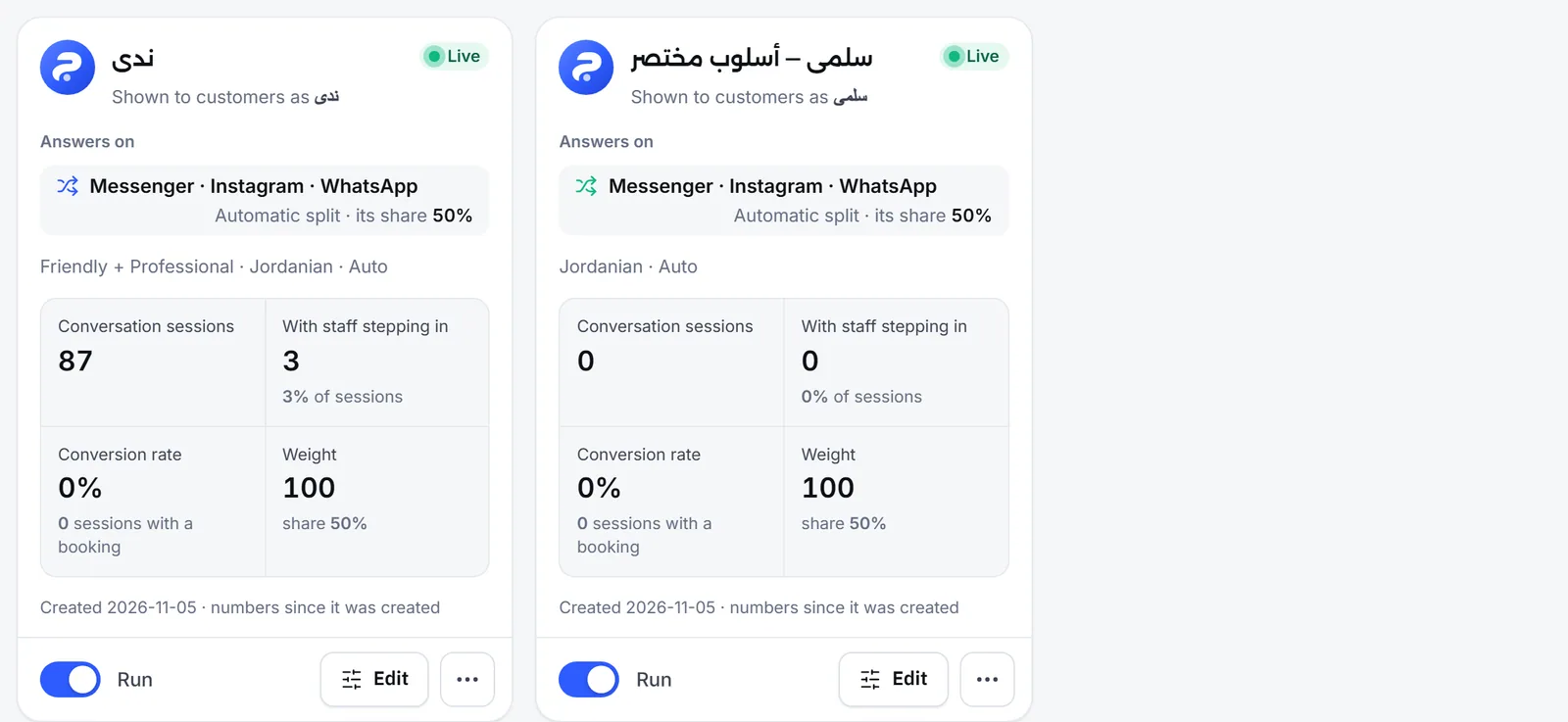
Section titled “Can I run more than one agent?”Yes, and you manage them all from Agent Studio. Each agent has a card under Your agents, with its state, its share of new conversations and its numbers.
What belongs to each agent, and what the agents share:
| Each agent’s own | Shared by all agents |
|---|---|
| Name customers see | The knowledge base and documents |
| Style, dialect and instructions | The Agent behavior section, including automatic resume |
| Handoff to your team settings | The master switch |
| Voice & images | Replies per channel |
| Weight |
How do I create a new agent?
Section titled “How do I create a new agent?”With New agent in Agent Studio. A new agent starts stopped, so it answers nobody before you write its instructions and switch it on.
- Open Agent Studio and press New agent.
- Type the Agent name (internal). Only your team sees it, in the list and the comparison.
- Press Create and open. The new agent’s settings open.
- Write the Name customers see, its style and its instructions, then press Save.
- Go back to Agent Studio and switch on Run on its card. The agent starts taking its share of new conversations.
How to write instructions is in Agent instructions.
How are conversations split among the agents?
Section titled “How are conversations split among the agents?”Every new conversation goes to one agent and stays with it to the end. The agent is chosen like this:
- If the channel is pinned to a live agent, its new conversations go to that agent.
- Otherwise Automatic split applies: one of the live agents is picked at random, in proportion to its weight.
The weight is a relative number. Two live agents with the same weight each take about half of the new conversations, and an agent with twice the other’s weight takes about two thirds. Each agent’s share shows on its card under Share of new conversations, and you change the weight in the Advanced section of its settings.
How do I give a channel its own agent?
Section titled “How do I give a channel its own agent?”From Replies per channel in Settings, by choosing the agent for each channel.
- Open Settings and go to Replies per channel.
- On the channel’s row, open the Agent menu.
- Pick the agent, or Automatic split to let the live agents share its conversations.
Choosing the agent needs both the manage-channels and the manage-agents permissions. If you stop an agent that is pinned to a channel, the channel falls back to Automatic split until you switch the agent on or pick another one.
For example, Elite Center pins a formal agent to its corporate WhatsApp number and leaves its Instagram page to an agent with a lighter style.
What happens when I stop or delete an agent?
Section titled “What happens when I stop or delete an agent?”A stopped agent takes no new conversations, and it stops answering its ongoing ones too: when one of its customers writes again, the conversation moves to a live agent and stays there.
- Stop: switch off Run on its card. Its settings and numbers stay, and right after stopping you get an undo that brings it back with its previous weight. If you switch it on yourself later, check its weight in Advanced.
- Delete: from the options menu on the card choose Delete agent, then confirm in the Delete this agent? dialog. Deleting is permanent, and the agent’s conversations are shared among the live agents.
- Stopping every agent: does not stop replies. You see No agent is live — but replies haven’t stopped, and every conversation, new or ongoing, is answered with the base settings written in the onboarding wizard.
How do I compare two agents?
Section titled “How do I compare two agents?”With Compare in Agent Studio, which appears once you have more than one agent.
The Compare variants table shows, for each agent, its conversation sessions, With staff stepping in, Staff intervention rate, and then Conversion rate in a business that takes appointments, or Without staff stepping in in any other. The numbers run from the day each agent was created, so compare rates more than counts.
In Inbox you can also list one agent’s conversations: open Filters and pick the agent under Agent.
Frequently asked questions
Does my subscription limit the number of agents?
No. Create as many agents as you need, and run as many of them as you like at the same time.
Do the agents share the knowledge base?
Yes. All your agents answer from the same business knowledge. What differs between them is the name, the style, the instructions and the handoff settings.
Can a customer move from one agent to another in the same conversation?
Not while their agent is live. A conversation stays with the agent that started it to the end, and moves only if you stop or delete that agent.
I stopped every agent. Why are replies still going out?
Because conversations, new and ongoing, are then answered with the base settings written in the onboarding wizard. To stop every reply, use the master switch.
Who can create and edit agents?
Team members with the manage-agents permission, plus the owner and admins.