
WhatsApp n8n, Zapier and Make automation with Mujib webhooks
WhatsApp automation with n8n, Zapier and Make runs on Mujib’s webhooks: Mujib sends every new customer, booking, handoff to staff or new message to a URL you create in the tool, which starts a workflow that carries on with the steps you want. You need no Mujib app inside the tool; its generic webhook step is enough.
The agent stays in Mujib and answers your customers on WhatsApp, Instagram and Messenger, while the tool takes what the conversation produced and carries on: a message to your team in another tool, a row in an internal system, or a task for a staff member. That is how a WhatsApp AI agent and n8n work together.
Which events reach n8n, Zapier and Make?
Section titled “Which events reach n8n, Zapier and Make?”Your URL receives each event you choose, out of 5, as it happens, as a JSON POST request.
| Event | Code | When it is sent |
|---|---|---|
| New customer | contact.created | When a new customer writes to your business |
| New booking | booking.created | When a new booking is made |
| Booking cancelled | booking.cancelled | When a booking is cancelled |
| Handed to staff | conversation.handoff | When a conversation is handed to your team |
| New message | message.received | With every new customer message, including its text |
- Each request carries the event’s code in the
X-Mujib-Eventheader, so you can route each event to its own branch of the workflow. - Booking events are hidden when your business does not take bookings.
- Each event’s content and fields are in Webhook events.
How do I create a webhook for an automation tool in Mujib?
Section titled “How do I create a webhook for an automation tool in Mujib?”You copy the receiving URL from the tool, then create a webhook in Mujib with that URL and pick its events. The Mujib side is the same for all three tools:
- Open Integrations and press Set up on the Zapier, Make or n8n card. The tool’s own steps appear.
- Once you have copied the receiving URL from the tool, press Set up the Webhook. The New webhook sheet opens with the tool’s name in Name.
- Paste the URL into URL. It must be a public address starting with
https://. - Pick the events under Events, then press Create webhook.
- Signing secret — shown this once appears. Copy it and keep it somewhere safe if you want to verify signatures.
- Press Send a test to send a test event the tool can learn the data’s shape from.
How do I connect Zapier to Mujib?
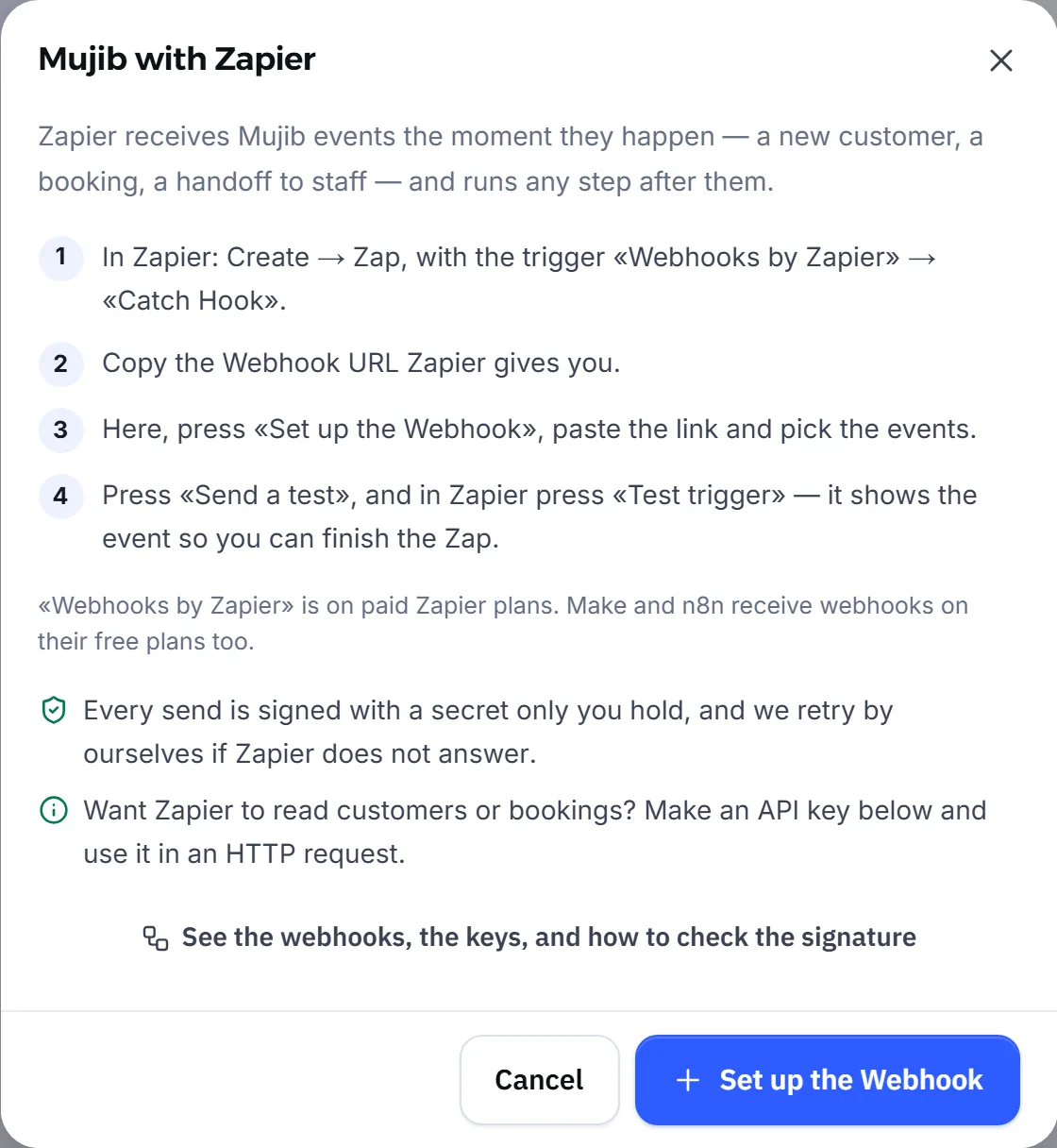
Section titled “How do I connect Zapier to Mujib?”Zapier receives Mujib events with the Webhooks by Zapier trigger, which is available on Zapier’s paid plans.
- In Zapier, press Create, then Zap, and choose the trigger Webhooks by Zapier, then Catch Hook.
- Copy the webhook URL Zapier gives you.
- In Mujib, create the webhook with that URL as above, and press Send a test.
- In Zapier, press Test trigger. The test event appears; finish the Zap with the steps you want and turn it on.
How do I connect Make to Mujib?
Section titled “How do I connect Make to Mujib?”Make receives Mujib events with the Webhooks module, type Custom webhook.
- In Make, press Create a new scenario, add the Webhooks module, then Custom webhook, press Add, and copy the address.
- In Mujib, create the webhook with that address.
- In Make, press Run once, then in Mujib press Send a test, and Make learns the data’s shape.
- Finish the scenario with the tools you want, and switch it on under Scheduling by setting it to On.
How do I connect n8n to Mujib?
Section titled “How do I connect n8n to Mujib?”n8n receives Mujib events with a Webhook node, using its Production URL, which works while the workflow is active. This is the WhatsApp webhook for n8n.
- In n8n, create a new workflow, add a Webhook node, and set HTTP Method to POST.
- Copy the Production URL. It must be public and start with
https://; Mujib does not accept an address on your internal network or your own computer. - Activate the workflow (Active) so the production URL works.
- In Mujib, create the webhook with that URL, press Send a test, then check the run under Executions in n8n.
To read from Mujib inside the same workflow, add an HTTP Request node with an API key. See API key authentication.
How do I make sure an event came from Mujib?
Section titled “How do I make sure an event came from Mujib?”Every event is signed with the webhook’s signing secret in the X-Mujib-Signature header, so your tool can check it before acting on it.
- The secret shows once, when you create the webhook. If it is lost, rotate it from the webhook’s page and update your tool with the new one.
- The same event can arrive twice if your tool answers late. Use the
X-Mujib-Deliveryheader to skip what you already handled. - If the tool does not answer, Mujib retries on its own, and each send’s result shows in Recent deliveries on the webhook’s page.
- After 20 failed sends in a row, Mujib pauses the webhook until you fix the URL and resume it.
The verification steps, with ready examples, are in Webhook signatures, and everything about webhooks is in WhatsApp webhook.
Frequently asked questions
Do I need a Mujib app inside Zapier, Make or n8n?
No. The tool receives Mujib events with its own generic webhook step, and you create the link in Mujib from the tool's card.
Do orders reach Zapier, Make or n8n?
No. Webhook events cover customers, bookings, handoffs to staff and messages. Orders go to the stores and to Google Sheets.
Do the events contain customers' message text?
Only “New message” carries the customer's message text, so choose it only when your tool needs the text.
How many webhooks can I create?
Up to 10 per business, each with its own URL, secret and events.
Can n8n also read from Mujib?
Yes. Create a read-only API key and use it in an HTTP Request node to read customers and bookings.