
WhatsApp Odoo integration that turns every customer into a lead
Mujib’s Odoo WhatsApp integration turns every new customer the agent talks to into a lead in Odoo’s CRM app, and adds their bookings, cancellations and handoffs to staff as notes on that lead. It works with Odoo Online, Odoo.sh and self-hosted Odoo, and all it needs is an API key you create from your Odoo profile.
Your sales team then sees in Odoo who wrote to your business on WhatsApp, Instagram or Messenger, when they booked, and when they asked for a person, without anyone copying anything by hand.
What does Mujib send to Odoo?
Section titled “What does Mujib send to Odoo?”Every new customer reaches Odoo as a lead, and their events are added to it as internal notes, in the order they happen.
| Event in Mujib | What happens in Odoo |
|---|---|
| New customer | A new lead with the customer’s name and number, titled with their name and the channel they came from |
| New booking | A note with the booking time, the visit type’s code, the branch and the specialist. If the customer has no lead yet, one is created first |
| Booking cancelled | A note about the cancellation on the same lead |
| Handed to staff | A note that the customer needs a staff member, with the handoff reason when there is one |
- The notes are internal: Odoo emails nothing from them to the customer or to the lead’s followers.
- Notes are written in English, with the time in your branch’s time zone.
- Customers are sent from the moment you connect; those who came before are not.
- Booking events do not appear on the card when your business does not take bookings.
What do I need before connecting Odoo?
Section titled “What do I need before connecting Odoo?”You need the CRM app installed in Odoo, a user with access to it, and an API key for that user.
- The CRM app: Mujib refuses to connect when the app is not installed, or when the user cannot create leads in it.
- Odoo Online: Odoo offers API access on the Custom plan only, so the integration does not work on other plans.
- The address: your Odoo address must start with
https://.
How do I create an API key in Odoo?
Section titled “How do I create an API key in Odoo?”You create the key from your profile in Odoo, and it is shown to you only once.
- In Odoo, click your picture at the top, then My Profile, then the Account Security tab, and press New API Key.
- Name the key Mujib and confirm with your password.
- Copy the key right away; Odoo will not show it again.
How do I connect Odoo to Mujib?
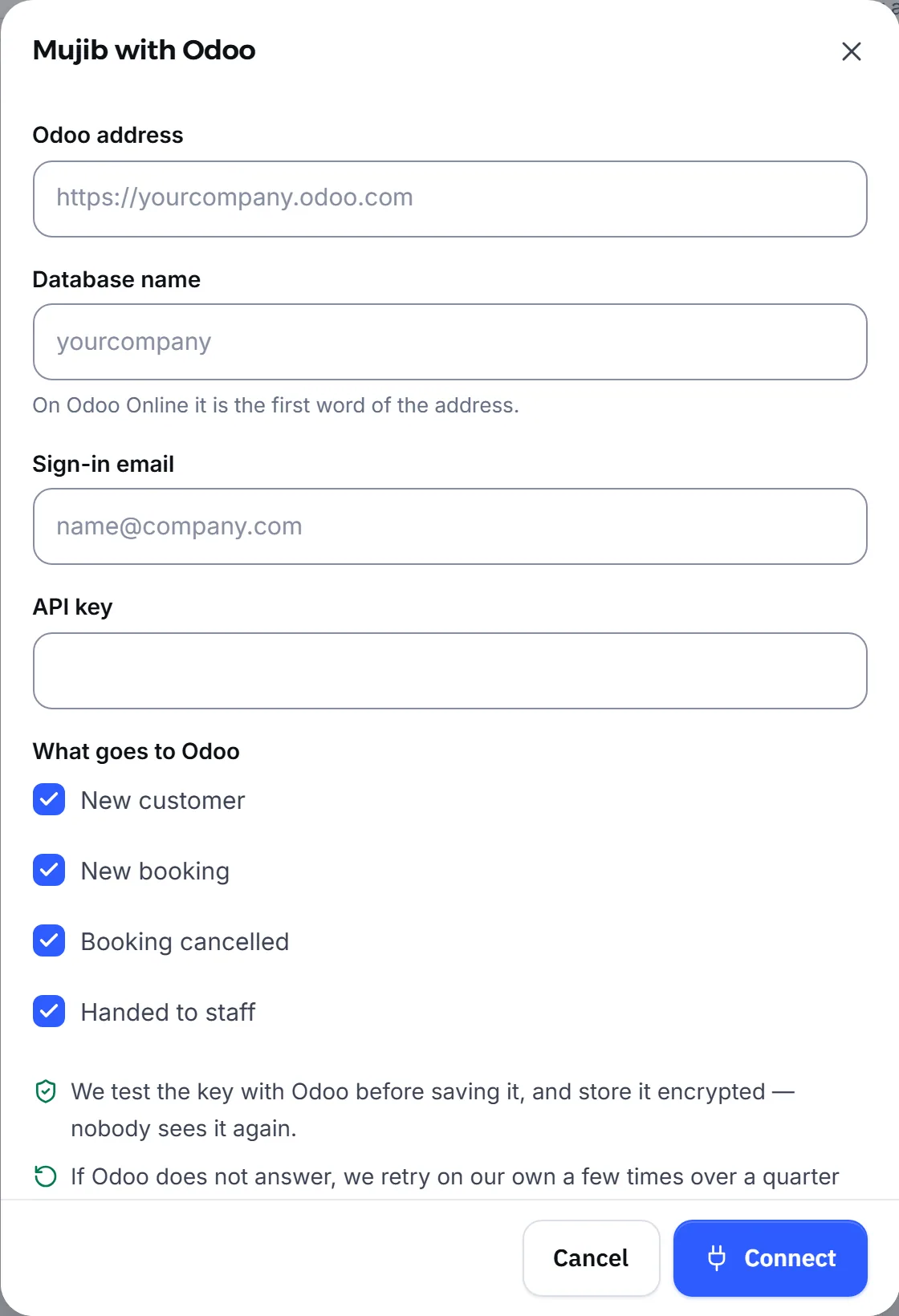
Section titled “How do I connect Odoo to Mujib?”You paste four details into the Odoo card, and Mujib tests them with Odoo before saving them.
- In Mujib, open Integrations and press Connect on the Odoo card.
- Fill in Odoo address, such as
https://yourcompany.odoo.com. The address your browser shows while you are in Odoo is enough; Mujib takes the server’s root from it. - Fill in Database name. On Odoo Online it is the first word of the address.
- Fill in Sign-in email, the email you sign in to Odoo with, then paste the key into API key.
- Leave the events you want ticked and press Connect.
The linked account shows as the database, the address and the Odoo version, and the card turns Connected.
What do the error messages mean when connecting Odoo?
Section titled “What do the error messages mean when connecting Odoo?”Mujib tests the details with Odoo straight away, and if they are refused, the reason shows under the fields in plain words.
| Message | What to do |
|---|---|
| This address is not Odoo, or its API is closed (on Odoo Online only the Custom plan has it) | Check the address. On Odoo Online, check that your plan is Custom |
| No database with this name at this address | Correct the database name |
| The CRM app is not installed in Odoo, or this user has no access to it | Install the CRM app, or give the user access to it |
| The key is wrong or lacks permissions — make a new one with the permissions listed | Check the email, or create a new key and paste it |
| Odoo was busy — we keep trying on our own | Nothing: Mujib retries on its own |
How do I follow what reached Odoo?
Section titled “How do I follow what reached Odoo?”Once connected, the Odoo card shows the sending status and the latest events.
- Latest sends lists every event and its result: Delivered, or Not delivered with the reason.
- If Odoo does not answer, Mujib tries up to 5 times over about 7 minutes. After 3 failed sends in a row the card shows Problem.
- Tick or untick events on the same card to change what is sent.
- To disconnect, press the button at the bottom of the card that starts with Disconnect. What reached Odoo stays there, and if you connect the same database again, Mujib carries on with the same records.
Using HubSpot, Salesforce, Zoho CRM or Pipedrive? The steps are in WhatsApp CRM integration.
Frequently asked questions
Does it work with Odoo Online and with my own server?
Yes. It works with Odoo Online, Odoo.sh and self-hosted Odoo, as long as the address is https and the CRM app is installed. On Odoo Online it needs the Custom plan, the only one where Odoo opens its API.
Does the integration make Odoo send anything to the customer?
No. Mujib writes bookings and handoffs as internal notes on the lead, so no email goes to the customer or to the lead's followers.
Does Mujib look for a customer who is already in Odoo?
No. It creates a new lead for each new Mujib customer, then adds all of that customer's bookings and handoffs to that same lead.
What happens if I delete the lead in Odoo?
On that customer's next booking or handoff, Mujib creates a new lead and adds the note to it, so nothing is lost.
Which Odoo user are the records created as?
The user you created the API key for, so pick one who has access to the CRM app.