
Subscription renewal and your customers' subscriptions in Mujib
The Subscriptions page in Mujib records the plans your customers buy from you: who subscribed, when each one ends, visits used and money paid. It is also where you follow subscription renewal: you see who ends soon, record the renewal, and your branches get a daily WhatsApp summary of who ends soon and who owes a payment.
When does the Subscriptions page appear?
Section titled “When does the Subscriptions page appear?”It appears when the subscriptions section is on for your business, which follows the business type you chose in Settings under Your business & modules. Choosing a business that sells packages turns on both subscriptions and appointments.
- Every team account that may view customers sees the page; registering a subscription or a payment needs either Sell subscriptions & record payments or Manage leads. See Team permissions.
- A branch account sees its own branch only, with the note You see your branch’s subscriptions only.
- Switching the section off deletes nothing: subscriptions and plans come back as they were when you switch it on again. See Settings and dashboard sections.
How do I add the plans I sell?
Section titled “How do I add the plans I sell?”You add plans once in Settings, and your team picks one at every sale. Only the account owner edits plans and their prices.
- Open Settings, then Plans & prices, and press Add plan.
- Fill in Plan name, then the Term in months or days.
- In Visits included, type the number of visits, or leave it empty for unlimited visits.
- Type the price and choose Who this price is for: Everyone, New customer or Renewal.
- Press Save plan.
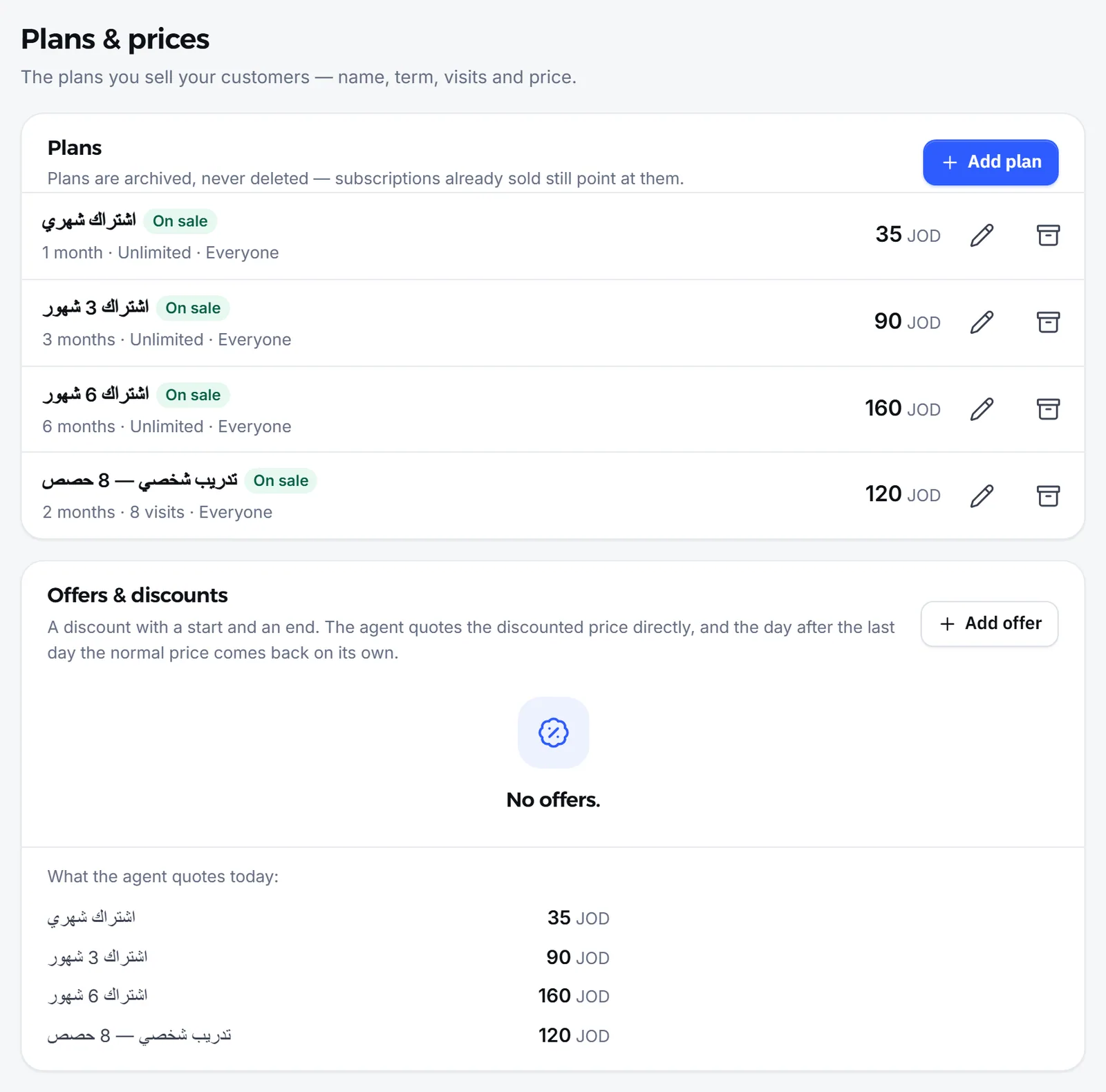
A plan is archived, never deleted, because the subscriptions sold on it keep pointing at it. Under Offers & discounts you add a discount with a start and an end date on one or more plans.
The agent quotes these plan prices to your customers as they stand today; when an offer is running on a plan, it quotes the discounted price directly.
How do I record a new subscription or a subscription renewal?
Section titled “How do I record a new subscription or a subscription renewal?”You record a sale with Register a subscription at the top of the page, in four short steps. A renewal is recorded the same way, and Mujib works out its type for you.
- Subscriber: search for the customer by name or phone, or add them with New customer.
- Plan & payment: pick the branch, the plan and the Start date, enter the Agreed price and what was Paid now, and set When the rest is due if a balance remains.
- Visits: if your business uses the calendar, choose the repeat, the visit type, the specialist and the first visit, and the appointments are booked on the calendar. You can skip this with Save without booking.
- Review & save: check the details and press Save subscription.
The Sale type field fills itself: a sale counts as a renewal when the customer had an earlier subscription, and you can change it. When the customer still has a running subscription, you choose between Start after it ends and Start today instead.
How do I see whose subscription ends soon?
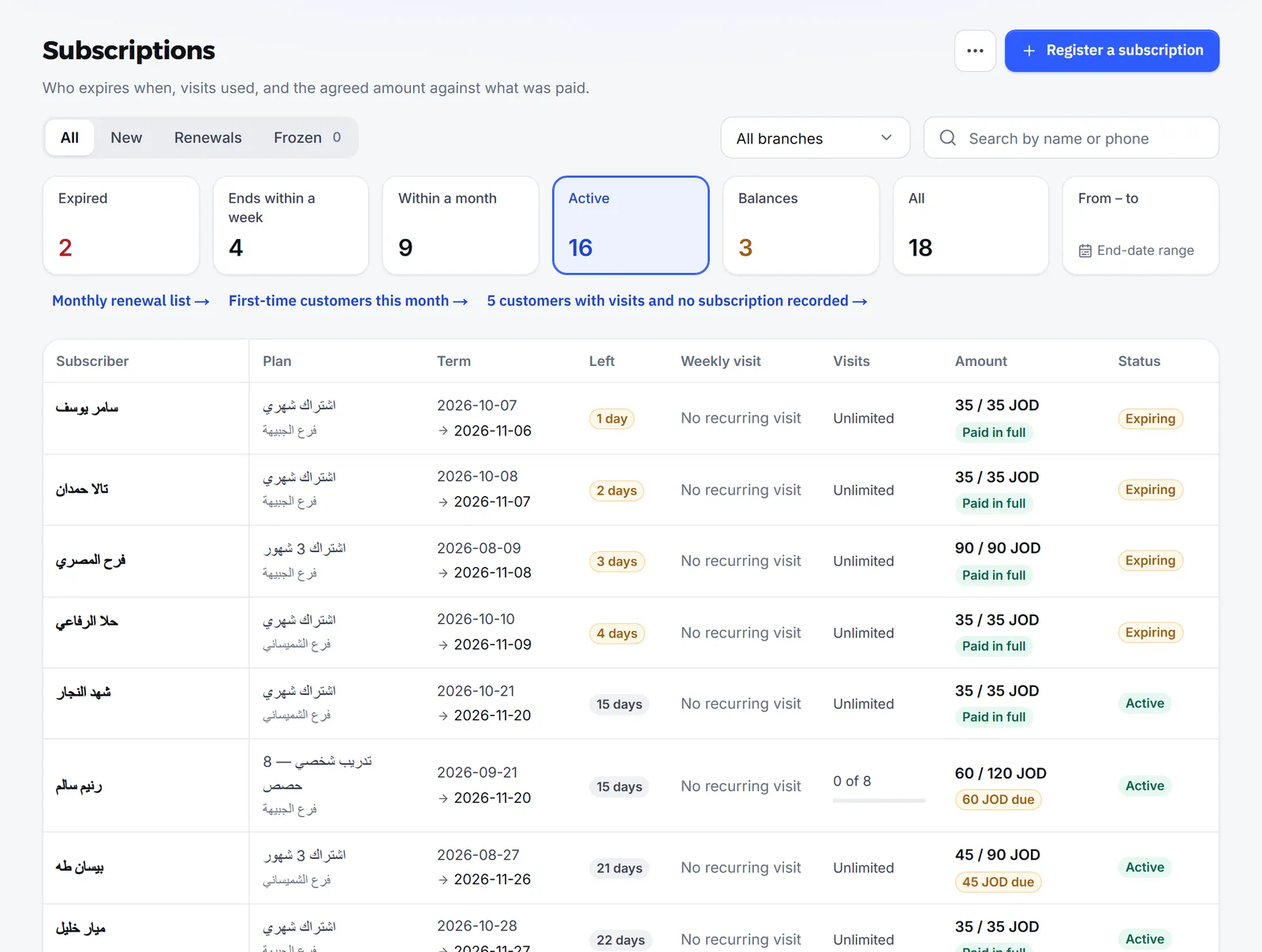
Section titled “How do I see whose subscription ends soon?”The filter tiles at the top of the page show it: each tile shows how many subscriptions it holds and opens their list in one tap.
| Tile | What it shows |
|---|---|
| Expired | Subscriptions that have ended |
| Ends within a week | Subscriptions ending this week |
| Within a month | Subscriptions ending this month |
| Active | Subscriptions running now |
| Balances | Who still owes money, overdue first |
| All | Every subscription |
- To pick your own range, press From – to and choose two dates; they may be in the future. Frozen and cancelled aren’t counted
- To see one kind of sale, choose New, Renewals or Frozen.
- The link Monthly renewal list → opens the renewal list in Reports, where you record who decided not to renew.
- Download CSV downloads the same list you see, for accounts that may open reports.
How do my branches get a daily subscription renewal reminder?
Section titled “How do my branches get a daily subscription renewal reminder?”Each branch gets one WhatsApp message a day, on the branch’s number or its manager’s phone, listing who is close to the end and whose payment is due. The message is for your team only, nothing in it goes to the customer, and it stays off until you switch it on.
- Open Settings, then Branch alerts.
- Under Daily subscriptions summary, switch on Subscriptions ending soon and set Days before the end between 1 and 30 days. It starts at 3 days, counted from today.
- Switch on Payments due if the message should also list balances due today or overdue.
- For a branch that needs different settings, set it under Per branch, then press Save branch alerts.
The message goes out from your connected WhatsApp number after 09:00 in your business’s time zone, and each subscription appears once per end date. Subscriptions with no branch go to the notification number in the same settings. When a branch has no valid number, the page warns you under Branches the alert can't reach.
How do I record payments, freezes and cancellations?
Section titled “How do I record payments, freezes and cancellations?”All of it is in the subscription’s details: tap any subscription in the list to open them.
- Record a payment: records money received. Payments cannot be edited; a mistake is voided with a reason, and every payment keeps the name of whoever recorded it.
- Chased today: a marker for your team that you chased the customer today. It sends them no message.
- Freeze subscription, then Unfreeze: pauses the subscription. Whether the term is extended, and how many freezes are allowed, follow the Subscription policy in Settings.
- Add gift days: extends the subscription by days, with a reason you write.
- Cancel subscription: cancels the subscription and its upcoming linked visits, and keeps the record. Deleting for good is possible only for a record with no payments, visits, freezes or renewals.
Does the agent know a customer’s subscription?
Section titled “Does the agent know a customer’s subscription?”No. The agent knows your plan prices and offers only, and sees no customer’s subscription: not the visits left, the end date, a freeze or a balance.
When a customer asks “how many visits do I have left?” or “when does my subscription end?”, it does not guess and does not ask for their number. It hands the conversation to your team, or tells the customer the details are not visible in the chat and points them to the branch. So the subscription record stays with your team, and a person answers from it.
Frequently asked questions
Does Mujib send the renewal reminder to the customer?
No. The reminder is a daily summary for your team, sent to each branch's WhatsApp number or its manager's phone. Nothing in it goes to the customer.
Does the agent know how many visits a customer has left or when their subscription ends?
No. The agent quotes your plan prices only and cannot see any customer's subscription. When a customer asks about theirs, it hands the conversation to your team or points them to the branch.
I recorded a payment by mistake. Can I edit it?
Payments cannot be edited once recorded. Void it with a reason, then record the right one; every payment stays saved under the name of whoever recorded it.
How does Mujib know a sale is a renewal and not a new subscription?
It suggests the type itself, treating a sale as a renewal when the customer had an earlier subscription. You can change the sale type before saving.
What happens to my customers' subscriptions if I switch the subscriptions section off?
Nothing is deleted. Only the page goes away; subscriptions and plans come back as they were when you switch the section on again.