
Images in chat: what your AI agent reads and sends
Images in chat work both ways: the agent sees the photo a customer sends and answers it, and it sends customers images from the Media library when they ask to see a product, an offer or a branch. Videos and files a customer sends, the agent does not open; it answers only the text written with them.
Does the agent understand the images customers send?
Section titled “Does the agent understand the images customers send?”Yes. The agent sees the photo a customer sends on WhatsApp, Messenger or Instagram and answers it, whether or not the customer wrote anything with it. For example, a customer sends a photo of a product and asks “do you have this?”, and the agent answers from your knowledge base.
- The switch: Reads images in the Voice & images section of the agent editor, on by default. Turn it off and the agent ignores images and answers the text alone.
- Facts still come from your knowledge: the photo helps the agent understand what the customer is asking about; prices and details still come from the knowledge base.
- If the photo itself did not arrive, the agent answers only the text written with it.
What does the agent do with videos, files and stickers?
Section titled “What does the agent do with videos, files and stickers?”The agent does not open videos or files; it answers only the text written with them. If there is no text, it does not reply, and you get a notification that the message needs your answer.
| What the customer sends | What the agent does |
|---|---|
| A photo | Sees it and answers |
| A voice message | Transcribes it and answers. See Voice messages |
| A video or a file, such as a PDF | Answers only the text written with it. With no text it does not reply, and you are notified |
| A sticker on WhatsApp | Does not reply, and you are notified |
| A post or reel shared on Messenger or Instagram | Does not open or watch it; reads only its title, if any, and what the customer wrote with it |
How does the agent send images from the media library?
Section titled “How does the agent send images from the media library?”When a customer asks to see something, the agent picks the image in the Media library whose name, tags and description best match the customer’s words, and sends it.
- It does not guess: when no image fits, it sends nothing and tells the customer no photo is available for that.
- It does not repeat: it never sends the same image twice in one conversation.
- The line with the image is the agent’s own, or it sends the image alone. On Messenger and Instagram that line arrives as a separate message after the image.
- Price and description: if you gave the image a price or a description, the agent can mention them with it.
- An empty library: if your library has no images, the agent never sends any.
- Branch locations on the map come from your Branches data, not from the media library.
In the agent editor, Sends images from your media is a locked row marked Always: sending images always works as long as your library has images.
How do I add an image to the media library?
Section titled “How do I add an image to the media library?”You upload images on the Media page and name them with the words your customers use. Team members need the Manage media permission.
- Open Media and press Upload image. If the image is on your website, press Add by link instead, and Mujib keeps its own copy.
- Write the Label the way a customer would ask for it, up to 120 characters. The agent matches the customer’s words against this name.
- Pick a Category: General, Program, Offer, Before / after, Product or Branch.
- Add Tags: other words customers use for the same thing, separated by commas, up to 20 tags.
- Press Upload image.
- Open the image to add a Description of up to 1000 characters, and a Price for a product. The agent reads the description to pick the right image.
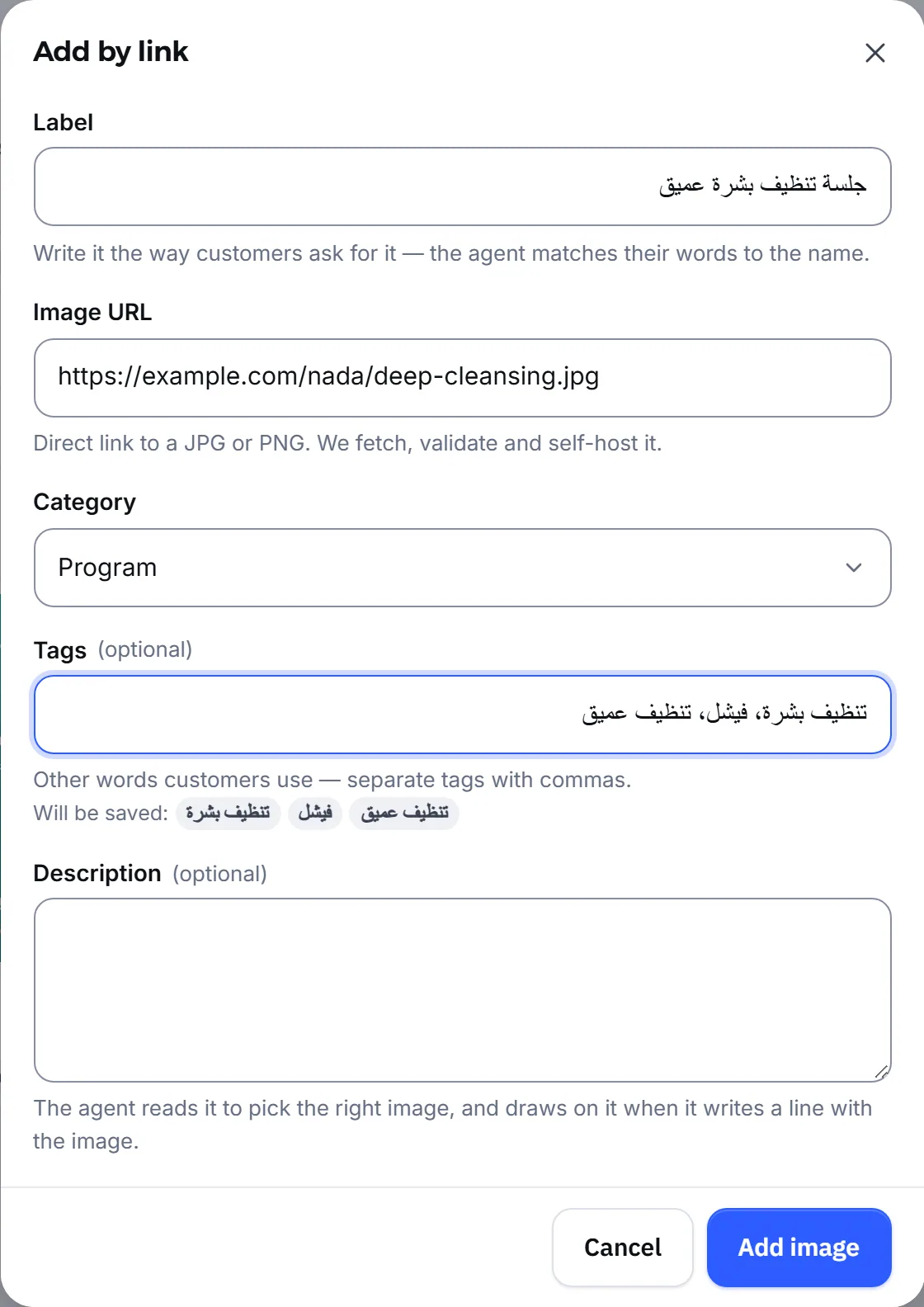
About the file: the library accepts PNG, JPG, WebP and GIF images of up to 15 MB each. Every image is checked at upload and a damaged one is refused, so a customer never receives a broken picture. The image arrives whole, without cropping: a transparent background becomes white, a large image is scaled down, and GIFs stay as they are.
Does the agent send product photos from the menu?
Section titled “Does the agent send product photos from the menu?”Yes, if your business uses the menu and orders. Each menu item’s photo is added to the Media library automatically under the item’s name, so the agent sends it when a customer asks to see that item.
How do I stop the agent sending an image?
Section titled “How do I stop the agent sending an image?”Delete it from Media, and the agent stops sending it right away. Deleting asks for confirmation, and an image the agent already sent in past conversations stays visible in those conversations in Inbox.
Frequently asked questions
Does the agent see the photo a customer sends?
Yes, on WhatsApp, Messenger and Instagram, with or without text, as long as “Reads images” is on in the agent editor. It is on by default.
Does the agent read a PDF or a video a customer sends?
No. The agent answers only the text written with the file or video. If it arrives with no text, the agent does not reply and you get a notification to answer yourself.
Will the agent send an image that does not match what the customer asked for?
No. When no image fits the request it sends nothing and tells the customer no photo is available for it.
Which images can I upload?
PNG, JPG, WebP and GIF images, up to 15 MB each. A damaged or incomplete image is refused at upload.
Can the agent send a PDF catalogue or a file to a customer?
No. The agent sends images only. If you want customers to see your price list or products, upload them to the media library as clear images.