
WhatsApp integrations for your CRM, sheets, store and AI apps
A WhatsApp integration in Mujib links the conversations your agent handles to the tools your team works in: your CRM, a Google sheet, your online store, your calendar, ChatGPT and Claude, and automation tools. You connect each one from the Integrations page, and it receives every new customer, booking or order as it happens.
The agent stays in Mujib and answers your customers exactly as before. An integration does not change how it replies; it carries what the conversations produce into your systems, or lets you ask your AI assistant about your business. WhatsApp, Instagram and Messenger customers are all included.
Which systems does Mujib integrate with?
Section titled “Which systems does Mujib integrate with?”Mujib connects directly to 8 systems on its own, to the ChatGPT and Claude assistants, and to any other tool through a webhook or an API key. The page groups them by category:
| Kind | Tools | What happens | Details |
|---|---|---|---|
| AI assistants | ChatGPT, Claude | You ask your assistant about your conversations and bookings; with your permission it improves the agent’s setup | ChatGPT, Claude |
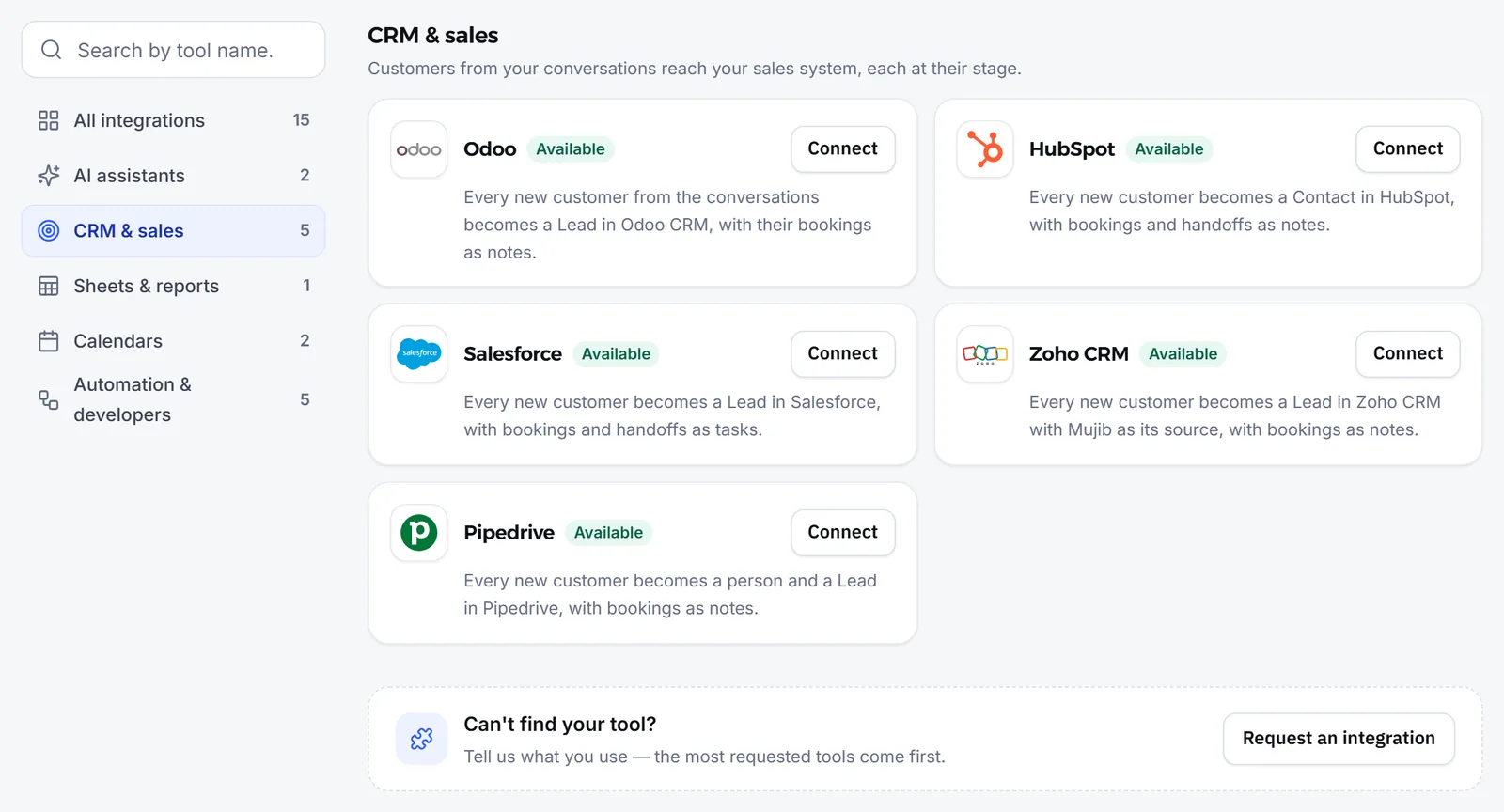
| CRM and sales | Odoo, HubSpot, Salesforce, Zoho CRM, Pipedrive | Every new customer becomes a record in your system, with their bookings and handoffs added to it | Odoo, CRMs |
| Sheets | Google Sheets | A sheet in your account that gets a row for every new customer, booking or order | Google Sheets |
| Calendars | Google Calendar, Outlook | Each branch’s bookings in your calendar, one way from Mujib to the calendar, once you switch the calendar links on | Calendar feed |
| Stores | Shopify, WooCommerce | Your store’s products become the agent’s menu, and the orders you accept are created in the store | Stores |
| Automation and developers | Webhooks, API keys, Zapier, Make, n8n | Mujib events reach your URL, and your systems read customers and bookings | Automation tools, developers |
The categories follow how your business works: calendars show for a business that takes bookings, and stores for one that takes orders. Booking events are also left out of every card when your business does not take bookings.
How do I connect a tool from the Integrations page?
Section titled “How do I connect a tool from the Integrations page?”The owner or an admin connects each tool from its card, and the card itself explains where to copy the key in the other system.
- Open Integrations from the sidebar, then search for the tool or pick its category.
- Press Connect on the tool’s card, or Set up for the automation and calendar tools.
- Follow the steps under Where to find the keys and paste what you copied into the fields.
- Choose which events should reach the system; they all start ticked.
- Press Connect. Mujib tests the key with the other system before saving it, and if it is refused, the reason shows under the fields in plain words.
- The card’s badge turns Connected and shows the account you linked.
The keys you paste are stored encrypted and never shown again, not even to you. Google Sheets needs no key at all: you connect it by signing in with Google.
How does a WhatsApp CRM integration work?
Section titled “How does a WhatsApp CRM integration work?”A customer writes to your business on WhatsApp, Instagram or Messenger, the agent answers, and Mujib records them as a new customer. At that moment Mujib sends the customer to your connected CRM as a new record with their name and number. When they book, cancel or are handed to staff, Mujib adds that to the same record, so your sales team reads the whole story where it already works.
Mujib remembers the record it made for each customer, so a new booking never creates a second one. Each system’s details are in WhatsApp Odoo integration and HubSpot, Salesforce, Zoho and Pipedrive.
Which events reach each system?
Section titled “Which events reach each system?”Each system takes the events that make sense for it. You choose among them, and you can change them on its card after connecting.
| System | Events it receives |
|---|---|
| Odoo, HubSpot, Salesforce, Zoho CRM and Pipedrive | New customer, New booking, Booking cancelled, Handed to staff |
| Google Sheets | New customer, New booking, Booking cancelled, Order accepted |
| Shopify and WooCommerce | Order accepted, Order cancelled |
| Webhooks, and with them Zapier, Make and n8n | New customer, New booking, Booking cancelled, Handed to staff, New message |
An order is sent when you accept it, or when it is accepted automatically; never while it waits for your team. See Orders and menu.
What happens if sending to my system fails?
Section titled “What happens if sending to my system fails?”Mujib retries on its own, and each send’s result shows on that system’s card.
- If the other system does not answer, Mujib tries up to 5 times over about 7 minutes.
- Latest sends lists every event and its result: Delivered, Not delivered with the reason, or Nothing to send when there was nothing to send, such as cancelling a booking that never reached the system.
- After 3 failed sends in a row the card shows Problem. Mujib keeps sending new events, and the status clears with the first send that succeeds.
What happens when I disconnect an integration?
Section titled “What happens when I disconnect an integration?”Sending stops at once, and whatever already reached the other system stays there.
- Connect the same account again, with a new key for example, and Mujib carries on with the same records, so no customer or product is duplicated.
- Google Sheets is the exception: every new connection makes a new sheet, and the old one stays in your account.
- Disconnecting a store does not delete the menu items that came from it; they stay, and you can edit them in Menu & products.
What if I can’t find my tool?
Section titled “What if I can’t find my tool?”Ask the Mujib team for it, or connect it now through an automation tool.
- Press Request an integration at the top of the page, or on the Can't find your tool? card at the bottom.
- Fill in Tool name, then what you want under What should happen?.
- Press Send request. The Mujib team reads every request, and the most requested tools come first.
Until your tool arrives, many tools can be connected through Zapier, Make or n8n, or your developer can build a link of their own with the developer API.
Frequently asked questions
Do I need a developer to connect Mujib to my systems?
Usually not. You paste into Mujib a key you copy from the other system, or sign in with Google, and each integration's card spells out the steps. API keys and webhooks are for people who build on Mujib themselves.
Who can open the Integrations page?
Only the account owner and admins. The rest of the team does not see the page, because an integration can send customer data out of Mujib.
Do Instagram and Messenger customers come through too, or only WhatsApp?
Customers from all three channels come through. The channel each one came from shows in Google Sheets and in most CRMs.
Are my existing customers sent when I connect?
No. Sending starts when you connect, with every new customer, booking or order from then on.
I can't find the tool I use. What can I do?
Press “Request an integration”, name the tool and say what you want from it; the request reaches the Mujib team. Meanwhile you can connect it through Zapier, Make or n8n if it works with them.