
WhatsApp CRM integration: HubSpot, Salesforce, Zoho, Pipedrive
Mujib’s WhatsApp CRM integration sends every new customer the agent talks to on WhatsApp, Instagram or Messenger to HubSpot, Salesforce, Zoho CRM or Pipedrive, as a record with their name and number. It then adds their bookings, cancellations and handoffs to staff to that same record, so your sales team follows each customer from its own system.
You connect each system from the Integrations page with a key you copy from that system, and its card spells out the steps. Odoo has its own page: WhatsApp Odoo integration.
What does Mujib send to my CRM?
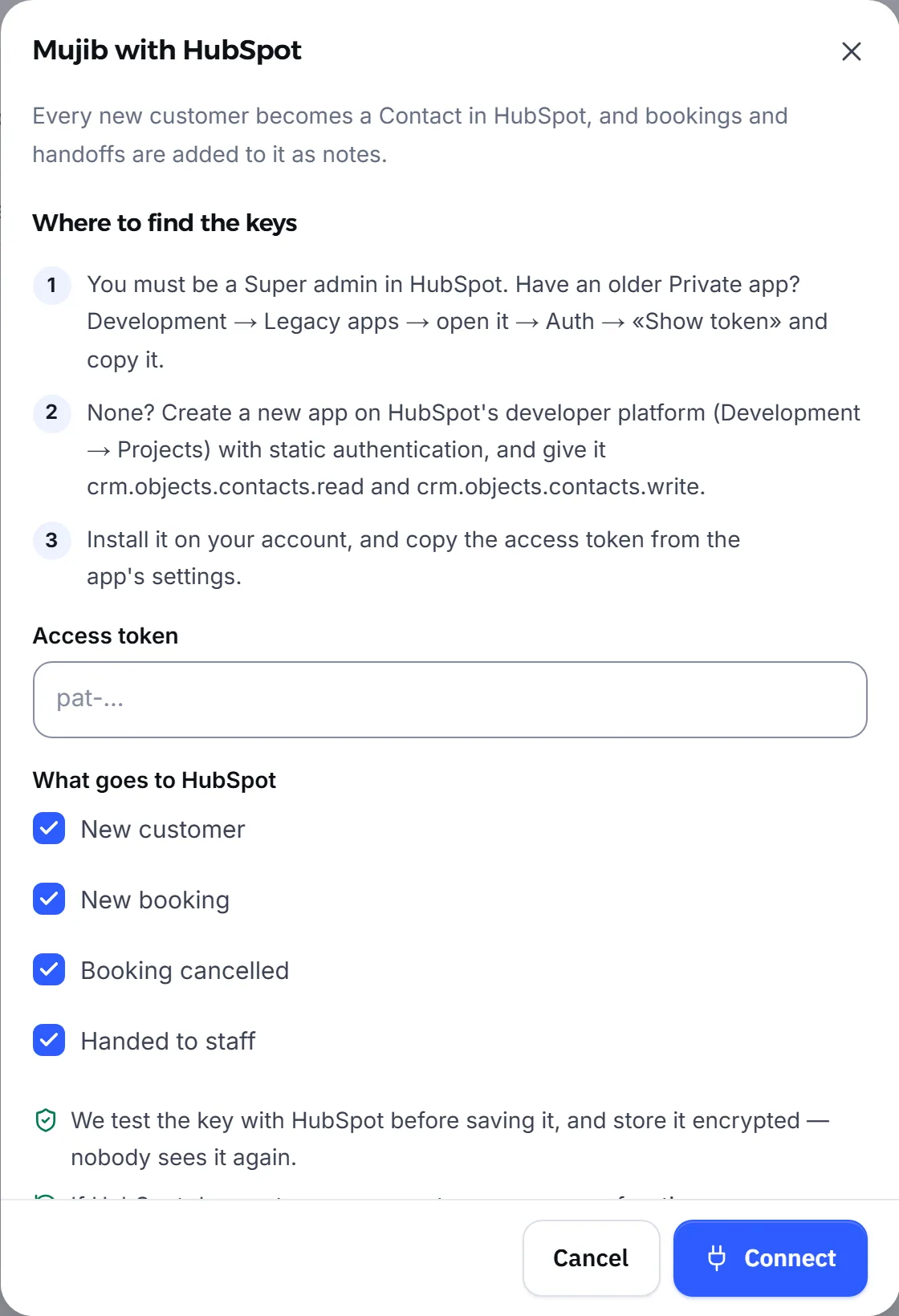
Section titled “What does Mujib send to my CRM?”Every new customer arrives as a record and their events are added to it later. On the card you choose which of the four events are sent: New customer, New booking, Booking cancelled and Handed to staff.
| System | A new customer becomes | Bookings and handoffs become | Looks the customer up first? |
|---|---|---|---|
| HubSpot | A Contact with a new-lead status | Notes on the contact | Yes, by number in the phone and mobile phone fields |
| Salesforce | A Lead with Mujib as its source, and your business as the company | Tasks on the lead, with the booking task due on the booking day | No, it creates a lead for each new customer |
| Zoho CRM | A Lead with Mujib as its source | Notes on the lead | No, unless you made the phone field unique in Zoho, then the existing lead is used |
| Pipedrive | A person and a lead in the Leads Inbox | Notes on the person | Yes, by number |
- The customer’s number is sent when it is known; Instagram and Messenger customers may arrive with a name only. In Salesforce, Zoho CRM and Pipedrive the record also names the channel they came from.
- If a customer books before their record exists, the record is created first and the booking added to it. A cancellation never creates a record.
- Booking events are hidden when your business does not take bookings.
How do I connect HubSpot to Mujib?
Section titled “How do I connect HubSpot to Mujib?”You paste an Access token from a private app in your account into the HubSpot card, and you must be a Super admin in HubSpot.
- If you have an older private app: open Development, then Legacy apps, open the app, go to Auth, press Show token and copy it.
- If you do not: create a new app on HubSpot’s developer platform under Development, then Projects, with static authentication, and give it
crm.objects.contacts.readandcrm.objects.contacts.write. - Install the app on your account and copy the access token from its settings.
- In Mujib, paste the token into the HubSpot card and press Connect.
If you see The token lacks the crm.objects.contacts.write permission — add it and try again, add the missing scope to the app and try again.
How do I connect Salesforce to Mujib?
Section titled “How do I connect Salesforce to Mujib?”You paste your My Domain address and the two keys of an app you create in Salesforce, and Mujib creates records as the user you pick for that app.
- In Salesforce, open Setup, then External Client App Manager, press New External Client App, and name it Mujib.
- Turn on OAuth: any https address as the Callback URL, the scope Manage user data via APIs (api), tick Enable Client Credentials Flow, and save.
- Under Policies, then OAuth Policies, turn on Enable Client Credentials Flow and choose under Run As the user records are created as.
- Under Settings, then Consumer Key and Secret, copy both keys, and copy your address from Setup, then My Domain.
- In Mujib, paste Salesforce address,
Consumer KeyandConsumer Secret, and press Connect.
- The address must be your My Domain address, ending in
my.salesforce.com. That is what Use your My Domain address (…my.salesforce.com), not login.salesforce.com means. - If you see Turn on «Client Credentials Flow», pick a Run As user, and check the api scope, check steps two and three.
- If you convert the lead to a contact in Salesforce, later tasks go on the contact. If you delete it, a new lead is created on the next event.
How do I connect Zoho CRM to Mujib?
Section titled “How do I connect Zoho CRM to Mujib?”You create a Self Client in Zoho and paste its ID, its secret and a temporary code from it into Mujib, which trades the code for lasting access.
- Open
api-console.zoho.com, press Add Client, then Self Client, then Create. - On the Client Secret tab, copy the
Client IDand theClient Secret. - On the Generate Code tab, enter
ZohoCRM.modules.ALL,ZohoCRM.users.READas the Scope, pick a ten-minute duration, write Mujib as the description, press Create, and copy the code. - In Mujib, choose Account region to match the end of your Zoho address: zoho.com, zoho.eu, zoho.in, zoho.com.au, zoho.jp, zoho.ca, zoho.sa and zoho.com.cn.
- Paste the ID, the secret, and the code into Grant code, and press Connect before the ten minutes are up.
The code works once. If you see The code was used or expired — make a new one and connect straight away or Zoho gave us no lasting permission — make a new code from the same Self Client, generate a new code from the same Self Client and connect straight away.
How do I connect Pipedrive to Mujib?
Section titled “How do I connect Pipedrive to Mujib?”You paste your personal API token from your settings into the Pipedrive card.
- In Pipedrive, click your name at the top, then Personal preferences, then API.
- Copy Your personal API token.
- In Mujib, paste the token into the Pipedrive card and press Connect.
The linked account shows as your company and its Pipedrive address. Each new customer becomes a person, plus a lead named after them and the channel they came from.
How do I know sending to my CRM works?
Section titled “How do I know sending to my CRM works?”Once connected, the system’s card shows the linked account, the time of the last send and the latest events.
- Latest sends lists every event and its result: Delivered, Not delivered with the reason, or Nothing to send when there was nothing to send, such as a customer sent before.
- If the system does not answer, Mujib tries up to 5 times over about 7 minutes. After 3 failed sends in a row the card shows Problem with the reason.
- If you see The other system refused the record as sent — check your required fields or The other system refused the request — check your permissions and required fields, you have most likely made a field required in your CRM that Mujib does not fill. Make it optional or give it a default value.
To disconnect, press the button at the bottom of the card that starts with Disconnect. What reached the system stays there, and if you connect the same account again, Mujib carries on with the same records without duplicates.
Need a system that is not listed here? Use Zapier, Make or n8n.
Frequently asked questions
Can I connect more than one CRM at the same time?
Yes. Each system has its own card, and every event reaches every connected system that chose it. One system links to one account only; a new connection replaces the old one.
Will a customer be duplicated in my CRM with every booking?
No. Mujib remembers the record it made for each customer and adds their bookings to it. In HubSpot and Pipedrive it also looks the customer up by number before creating them.
Do my existing customers reach the CRM?
No. Sending starts when you connect, with every new customer from then on.
Does Mujib keep the key I paste?
It stores it encrypted after testing it with the system, and never shows it again to anyone. For Zoho CRM it trades the temporary code for lasting access and does not keep the code itself.
What language are the CRM notes written in?
English, with the booking time in your branch's time zone, the visit type's code as your business defined it, and the branch and specialist names as they are in Mujib.