
Correct AI answers: teach your agent what it should have said
To correct AI answers in Mujib, you write what the agent should have said, and it follows that in its next replies, with no other setting to change. You write the correction from the conversation itself with Teach the agent, or from the Corrections notebook in Agent Studio, and it reaches all your agents from the next message.
Mujib does not rephrase or interpret what you write: the sentence you type is the correction. So keep it short and clear, the way you would tell a team member who got something wrong.
What are the two kinds of correction?
Section titled “What are the two kinds of correction?”There are two: Fact, for something the agent got wrong, and Style, for how it talks. You choose the kind yourself when you write it.
| Kind | Example | Where it is kept | When the agent reads it |
|---|---|---|---|
| Fact | “We do not deliver outside Amman” | As a Correction entry in the knowledge base | When the customer asks about the same thing |
| Style | “Ask one question per message” | As a rule the agent follows in how it talks | On every reply, or only when the customer uses one of its words |
- A fact correction wins: when it contradicts another knowledge entry, the agent follows the correction and treats the other entry as out of date. Still fix the old entry too, so the knowledge keeps one correct copy.
- A style correction adds no facts: it changes only how the agent talks, and never becomes a source for a price or a time.
- Package prices are outside corrections: the agent takes them from the price list alone, so no correction changes them or announces an offer.
How do I correct a reply from the conversation?
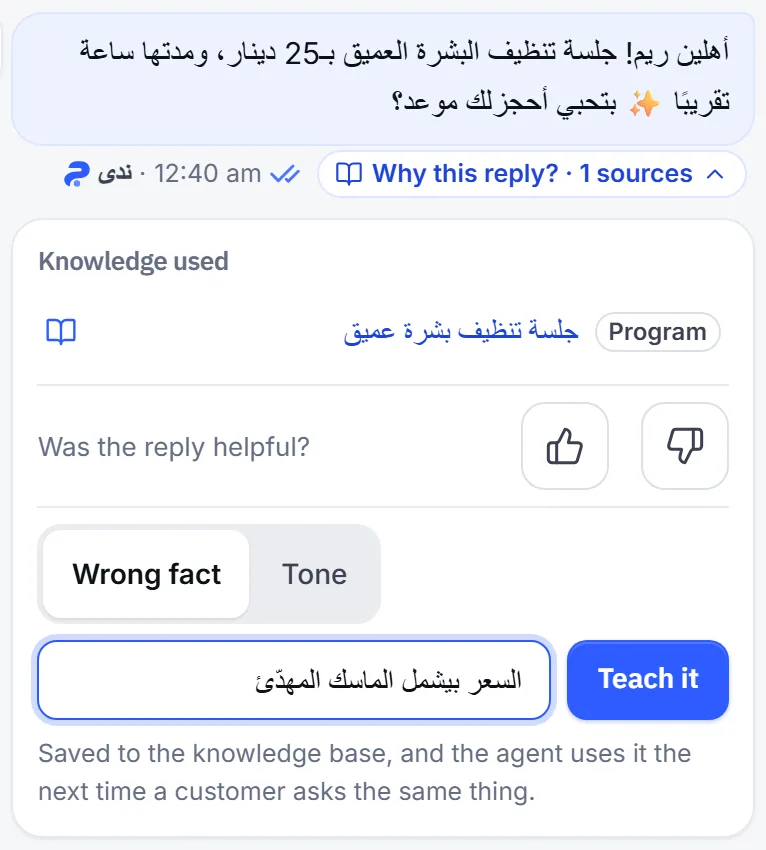
Section titled “How do I correct a reply from the conversation?”You correct it right under the reply in Inbox, the fastest route when you spot the mistake. The button shows under the agent’s replies only, for people with the Manage agents permission.
- Open the conversation and press Why this reply? under the agent’s reply. You see Knowledge used for that reply.
- Press Not helpful, or press Teach the agent.
- Choose Wrong fact or Tone.
- Write what it should have said, up to 200 characters, then press Teach it.
How do I add a correction from the corrections notebook?
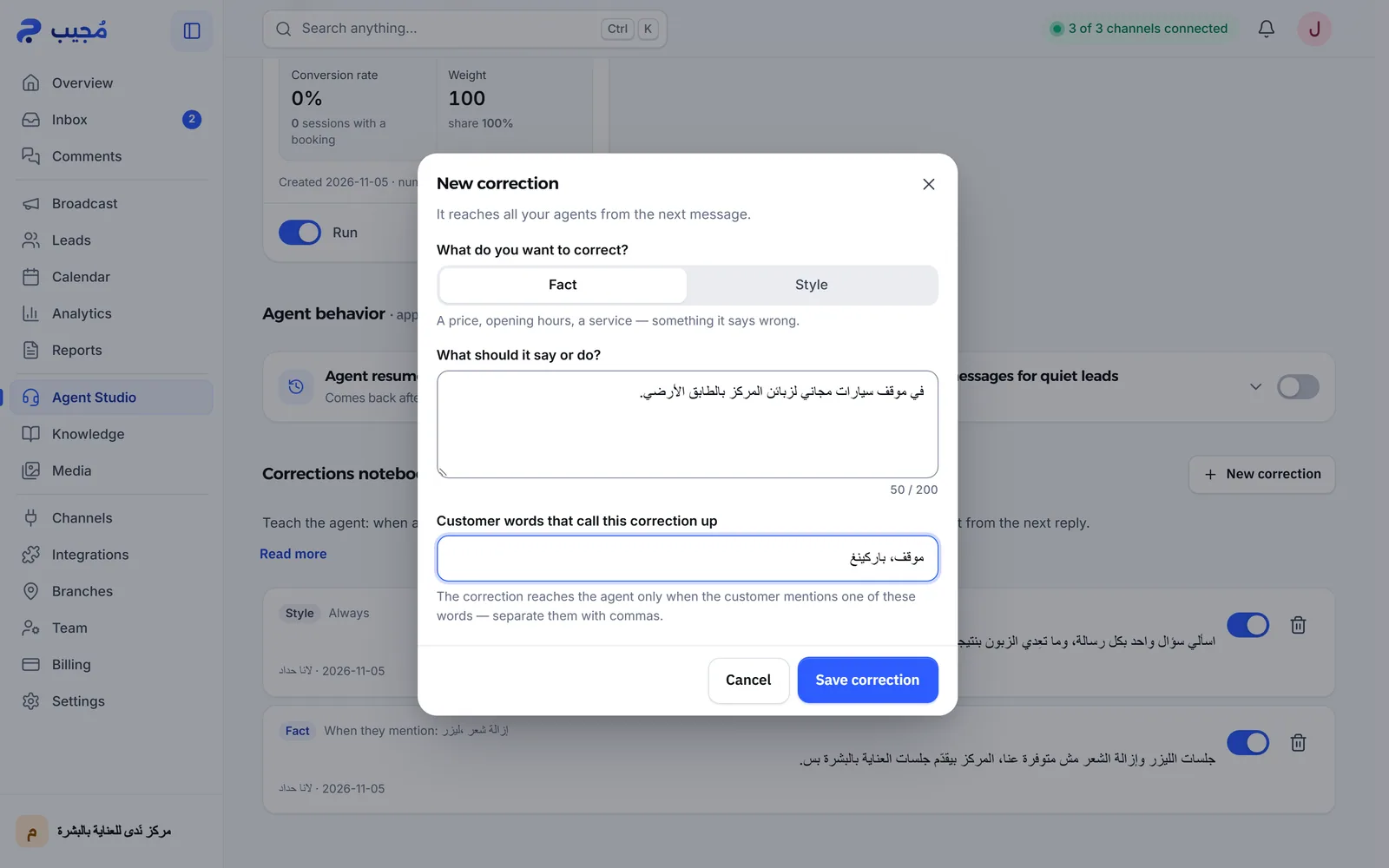
Section titled “How do I add a correction from the corrections notebook?”The corrections notebook is a section of Agent Studio that holds all your business’s corrections, and it is where you add a correction with trigger words.
- Open Agent Studio and go to Corrections.
- Press New correction.
- Under What do you want to correct?, choose Fact or Style.
- In What should it say or do?, write what it should have said, up to 200 characters.
- Type the words that trigger the correction, separated by commas: Customer words that call this correction up for a fact, Words that trigger the rule (leave empty = always on) for a style rule.
- Press Save correction.
When does a correction take effect?
Section titled “When does a correction take effect?”From the customer’s next message, because the agent reads corrections on every reply.
- A style correction with no words: an always-on rule that applies to every reply, marked Always.
- A style correction with words: applies only when the customer’s message contains one of its words, marked When they mention: with the words.
- A fact correction: reaches the agent when the customer asks about the same thing, and its words help it get there. It shows how many times it was used.
How many always-on rules can I add?
Section titled “How many always-on rules can I add?”You can have up to 5 always-on Style rules, because each one is read with every reply. At the limit, saving a new one is refused, and you have two options:
- Pause an always-on rule you no longer need.
- Give the new rule trigger words, so it does not count as always-on.
Beside the corrections notebook’s title, the Always-on rules badge shows how many always-on rules you use out of the limit.
How do I pause or delete a correction?
Section titled “How do I pause or delete a correction?”Each correction in the notebook has a switch between On and Paused, and a delete button.
- Pause: a paused correction does not reach the agent until you turn it back on. Pausing a fact correction also pauses its knowledge entry.
- Delete: permanent. Deleting a fact correction also deletes its knowledge entry.
- Edit: there is no button to edit a correction’s text. Delete it and write it again.
Fact corrections also appear in Knowledge under the Corrections tab.
When should I use a correction, and when should I edit the knowledge or the instructions?
Section titled “When should I use a correction, and when should I edit the knowledge or the instructions?”Use a correction to fix a mistake you saw in one specific reply, quickly and on the spot. A lasting fix belongs where the information lives:
| Situation | Best place |
|---|---|
| A wrong or missing fact in the knowledge | Edit the entry in the knowledge base, and add a correction if you want an immediate effect |
| A package price or an offer | The price list, not a correction |
| A general rule for how the agent works | The agent’s instructions |
| A recurring mistake around one phrase | A Style correction with trigger words |
Frequently asked questions
When does the agent start applying a correction?
From the customer's next message. The agent reads corrections on every reply, so there is nothing to wait for or restart.
Does a correction reach all my agents?
Yes. A correction you write from a conversation or from the corrections notebook reaches every agent in your business.
Can I edit the text of a saved correction?
The corrections notebook has no edit button for the text. Delete the correction and write it again, or pause it if you may want it back.
Why was a new style rule refused?
Because you already have 5 always-on “Style” rules. Pause one, or give the new rule trigger words so it only runs when a customer uses them.
Can I fix a package price with a correction?
No. The agent takes package prices from the price list only. Change the price there; a correction does not change a package price or announce an offer.