
Search conversations and filter by status, channel, agent and date
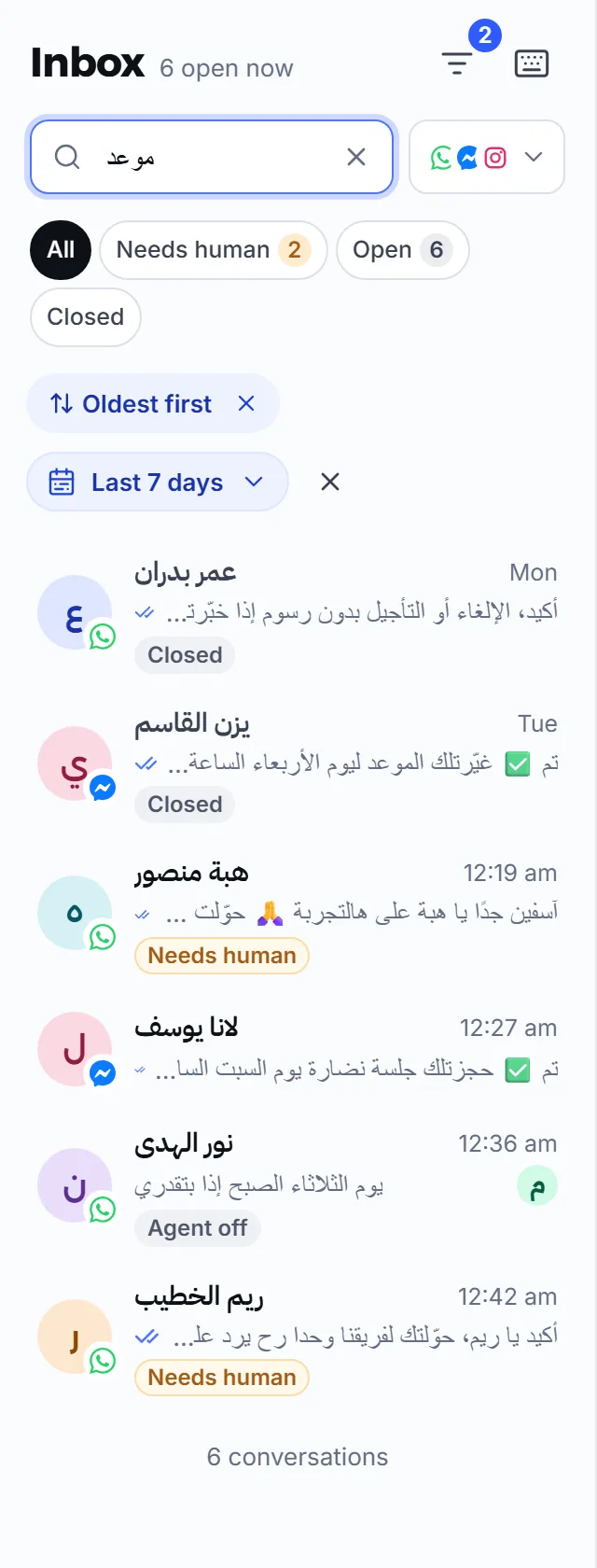
To search conversations, use the box at the top of the Inbox list: type a customer’s name, number or a word from a message, and every matching conversation appears, not just the rows already on screen. Filters narrow the list by status, channel, agent, time period and the conversations assigned to you.
How do I find a conversation by name, number or message text?
Section titled “How do I find a conversation by name, number or message text?”Type in the search box above the list; the search runs by itself a moment after you stop typing.
- Name and number: from two characters. Search matches the name shown in Mujib, the name the customer uses in the app itself, and their phone number.
- Message text: from 3 characters. Until you type that many, a hint under the box says message text is not searched yet.
- Closed conversations: search covers them just like open ones.
- Phone numbers: WhatsApp numbers are stored in international format without the leading zero, so search for part of the number after the zero, such as
790000000.
To clear the search, press × inside the box. On a computer, the / key jumps straight to the search box.
Which filters can I use on conversations?
Section titled “Which filters can I use on conversations?”The list has six filters, and you can combine them with a search:
| Filter | Options | What it shows |
|---|---|---|
| Status | All, Needs human, Open, Closed | Conversations by state, some with a count |
| Channel | All channels, WhatsApp, Messenger, Instagram | One channel’s conversations, with a count beside each channel |
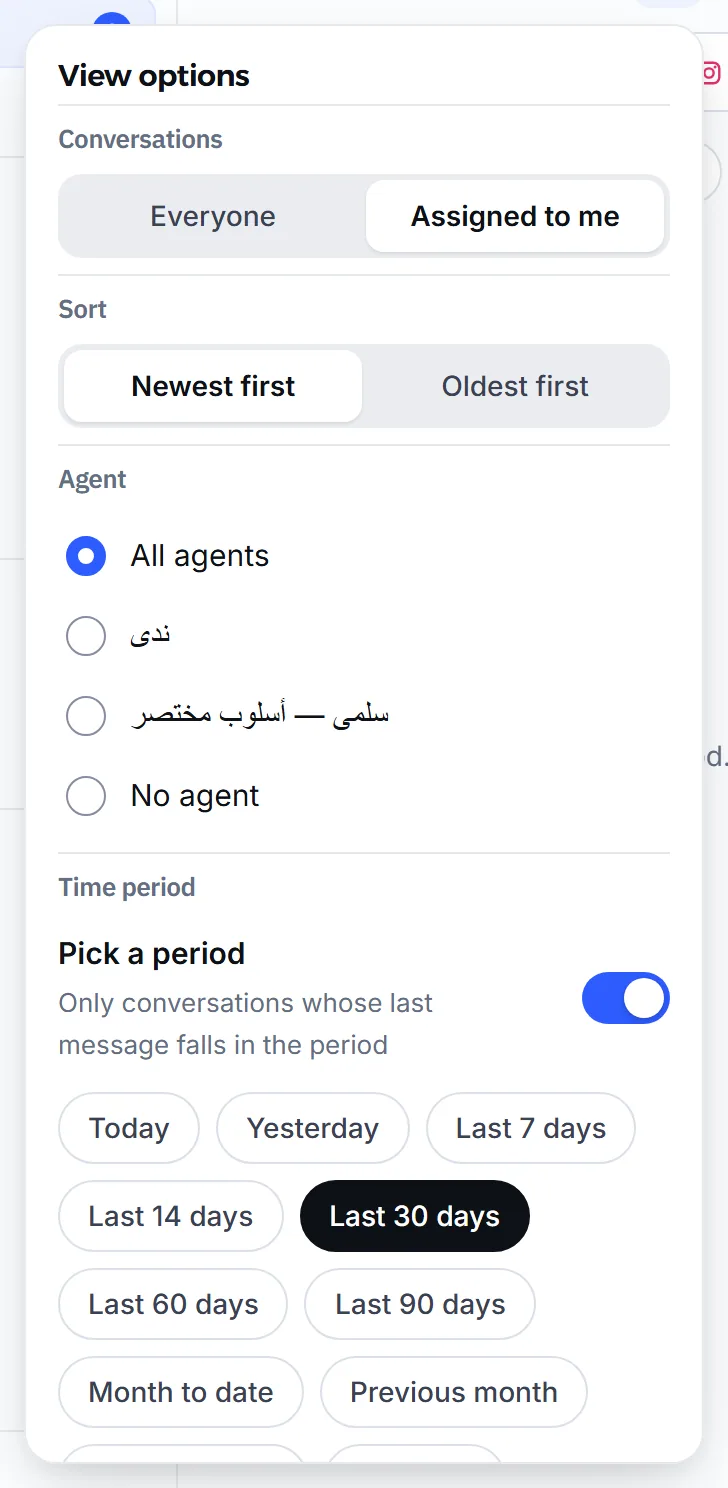
| Conversations | Everyone, Assigned to me | Only the conversations assigned to you |
| Sort | Newest first, Oldest first | The list’s order by last message |
| Agent | All agents, one agent’s name, No agent | Conversations a given agent handled, or that no agent handled |
| Time period | Pick a period | Conversations whose last message falls in the period |
- Possible spam joins the status buttons when the spam detector has paused at least one conversation, and Out of allowance when a conversation carries that tag. See Spam detection.
- The Agent filter appears only when your business has agents. See Multiple agents.
- Channel counts are not shown while you search.
Where are the filters on a computer and on a phone?
Section titled “Where are the filters on a computer and on a phone?”On a computer, the status buttons and the channel menu sit right above the list, and the other filters are behind View options in the list header. On a phone, they are all in the Filters sheet, opened from the button next to the search box, and every change updates the list at once.
Each non-default filter you pick shows as a small chip under the status buttons; press its × to remove it. The filters button shows how many are set.
How do I show conversations from a specific time period?
Section titled “How do I show conversations from a specific time period?”The period filter starts switched off, so older conversations stay in the list. To use it:
- Open View options on a computer, or Filters on a phone.
- Turn on Pick a period. The period starts at Last 30 days.
- Pick a ready period such as Today or Last 7 days, or set the start and end dates yourself.
The list then shows the conversations whose last message falls within the period, not the ones that started in it. To drop the filter, switch it off or remove its chip.
Why can’t I find a conversation I know exists?
Section titled “Why can’t I find a conversation I know exists?”Usually a filter is still set, or the search is too short.
- A filter is set: an empty list shows No conversations match these filters with Clear filters, which clears every filter and the search together.
- A short search: message text is not searched with fewer than 3 characters.
- A branch account: staff tied to a branch see only their branch’s conversations and the ones not assigned to any branch.
- An unanswered reminder conversation: a conversation an automatic appointment reminder opened, then closed without a reply from the customer, does not show in the default list. It appears under Closed and in search, and rejoins the list as soon as the customer replies.
- A deleted conversation: deleting a conversation is permanent, so search cannot find it. See Download media and delete messages.
What keyboard shortcuts does the inbox have?
Section titled “What keyboard shortcuts does the inbox have?”On a computer, the Keyboard shortcuts button in the list header lists them:
| Key | What it does |
|---|---|
J / K | Next / previous conversation |
↓ / ↑ | Next / previous conversation |
/ | Jump to the search box |
Enter | Send the reply |
Shift + Enter | New line in the reply |
Esc | Close menus |
Navigation shortcuts do not work while you are typing in a field.
How do I select several conversations at once?
Section titled “How do I select several conversations at once?”Choose Select conversations at the end of the filters, then tap the conversations you want, or press Select loaded to select everything the list has loaded. Selection is used to delete conversations, and it clears itself when you change a filter or the search, so you never delete conversations you can no longer see. Press Done selecting to leave.
Frequently asked questions
Does Mujib search message text too?
Yes, from 3 characters up. Names and numbers match from two characters.
Does search include closed conversations?
Yes. Search runs over every conversation you are allowed to see, open and closed, not only the rows on screen.
I searched for a customer's number and found nothing. Why?
WhatsApp numbers are stored in international format without the leading zero. Search for part of the number after the zero, such as 790000000.
Why don't I see the spam button above the list?
“Possible spam” appears only when the spam detector has paused at least one conversation; with none, there is nothing to show.
Do my filters stay after I leave the page?
No. When you open the page again from the sidebar, it shows every conversation, newest first.