
Connect ChatGPT to your WhatsApp inbox with Mujib
Connecting ChatGPT to Mujib lets you ask ChatGPT about your business in your own words: who is waiting for staff, how many bookings tomorrow, what customers asked today on WhatsApp, Instagram and Messenger. ChatGPT reaches Mujib through your own account and, with your permission, improves the agent’s setup, but it never sends a message to your customers.
Here ChatGPT is an app you connect to Mujib and ask questions; it is not what answers your customers. The agent stays in Mujib and works as before.
What do I need before connecting ChatGPT to Mujib?
Section titled “What do I need before connecting ChatGPT to Mujib?”Two things: you must be the account owner or an admin in Mujib, and your ChatGPT account must allow adding a custom MCP server.
- In Mujib: each person connects ChatGPT from their own account. If you are not an owner or admin, the consent step tells you: Only the owner and admins can connect this. Ask the account owner to connect it.
- In ChatGPT: you add it from ChatGPT on the web. If you do not see Add custom MCP server, open Settings, then Apps, then Advanced settings, and turn on Developer mode, or ask your company’s ChatGPT workspace admin.
How do I connect ChatGPT to Mujib?
Section titled “How do I connect ChatGPT to Mujib?”You copy the connection link from Mujib, add it in ChatGPT as a custom server, then approve the connection on Mujib’s page.
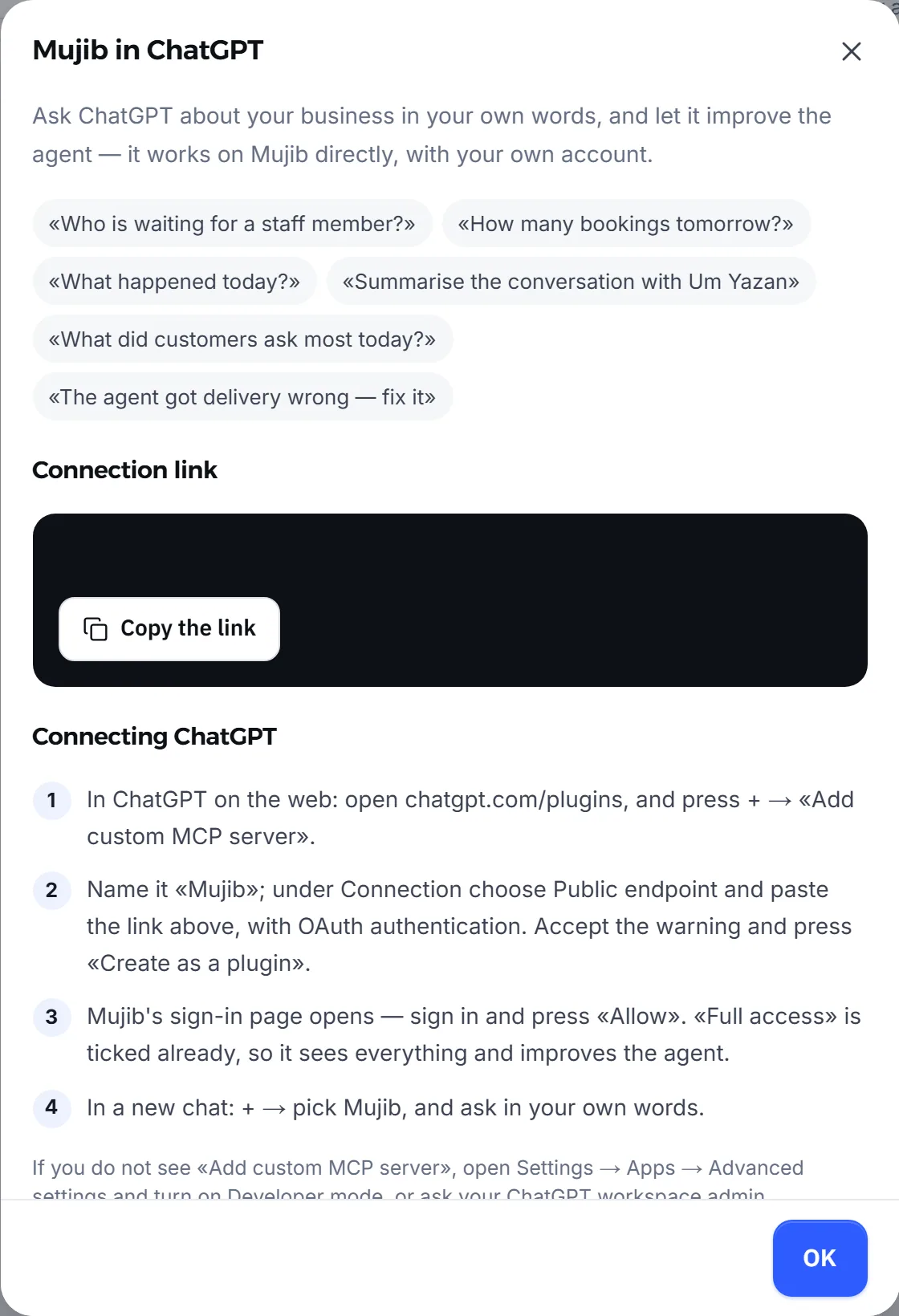
- In Mujib, open Integrations and press Connect on the Mujib in ChatGPT card.
- Under Connection link, press Copy the link.
- In ChatGPT on the web, open
chatgpt.com/pluginsand press +, then Add custom MCP server. - Name it Mujib. Under Connection choose Public endpoint, paste the link, and choose OAuth authentication. Accept the warning, then press Create as a plugin.
- Mujib’s sign-in page opens: sign in with your account, and enter your two-step verification code if it is on.
- On the consent page, press Allow. Mujib sends you back to ChatGPT.
- In a new chat, press +, pick Mujib, and ask in your own words.
What does Mujib’s consent page show?
Section titled “What does Mujib’s consent page show?”The consent page shows who is asking for access, to which business, and what it can and cannot see, before you press Allow.
- The app’s name, your business, and the account you signed in with and its email.
- What it can see: the conversations, bookings, customers and orders in your business, the same as you see in the dashboard.
- What it cannot do: it sends no message to your customers and deletes nothing.
- The Full access: it sees and improves the agent box, ticked from the start. Untick it if you want ChatGPT to read only.
- The address Mujib returns you to after you allow it, which is ChatGPT’s site.
If you do not want to connect, press No, take me back. If the request expires before you finish, go back to ChatGPT and start connecting again.
What can ChatGPT read and change in Mujib?
Section titled “What can ChatGPT read and change in Mujib?”ChatGPT reads your business’s live data, and changes the agent’s setup only when you granted full access and approve each change.
| Always reads | Changes with full access only |
|---|---|
| Handed-over conversations waiting for your team to reply | Adds a fact to the knowledge base |
| A summary of a day, a week or a month | Edits a fact or switches it off |
| Bookings for a day or a few days | Adds a correction the agent follows |
| Finding a customer by name or number, and reading their conversation | Edits the agent’s instructions, handoff instructions, and preferred and forbidden words |
| Today’s customer messages without names, to find the most common questions | |
| Orders, and interested customers worth a follow-up | |
| The agent’s setup, and searching the knowledge base |
ChatGPT cannot read bookings when your business does not take bookings, nor orders when it does not take orders. Every change applies to the agent from its next reply.
Questions to start with:
- Who is waiting for a staff member?
- How many bookings tomorrow?
- What happened today?
- What did customers ask most today?
- The agent got delivery wrong — fix it
Before any change, ChatGPT shows you exactly what it will write and waits for your yes in the chat. Give it the correct fact yourself, since the agent answers customers from the knowledge base alone. See Knowledge base and Agent corrections.
How do I review what ChatGPT did and undo its changes?
Section titled “How do I review what ChatGPT did and undo its changes?”Everything ChatGPT does shows on the Mujib in ChatGPT card on the Integrations page.
- Open the card. Under Connected you see everyone who connected it and their access: Full access or Can only look — for full access, disconnect it and connect again
- Under What it changed in the agent you see every change to the agent and who asked for it. Press Undo next to one, then confirm.
- Under What it read lately you see what it read lately, as a short label that never includes message text. This log is kept for 90 days.
Undoing switches off a fact or correction it added rather than deleting it, and puts back the old text of anything it edited. If someone changed the same thing after ChatGPT did, Mujib refuses the undo so the newer edit is not lost; put it back yourself where it was changed in the dashboard.
How do I disconnect ChatGPT from Mujib?
Section titled “How do I disconnect ChatGPT from Mujib?”Press Disconnect next to the person on the Mujib in ChatGPT card. Their access stops from the next question, not when the connection would have expired.
- ChatGPT is also disconnected on its own when you reset your password or turn on two-step verification, and its access stops when the person who connected it is no longer an owner or admin.
- To move a read-only connection to full access, disconnect it, then connect again from ChatGPT and leave the Full access: it sees and improves the agent box ticked.
- The technical side of the connection and its tools is in Mujib’s MCP server, and the Claude steps are in Connect Claude.
Frequently asked questions
Does ChatGPT answer my customers instead of the agent?
No. Your Mujib agent still answers your customers. ChatGPT is an app you ask about your business, and it never sends a message to a customer.
Can anyone on my team connect ChatGPT?
No. Only the account owner and admins can, each from their own account, and two-step verification is still asked for when it is on.
How do I let ChatGPT read without changing the agent?
Untick “Full access: it sees and improves the agent” on the consent page before you press “Allow”. It then reads and changes nothing.
Does ChatGPT change the agent on its own?
No. It shows you the change in the chat and waits for your yes, and every change appears on the Integrations page with an “Undo” button.
Why did ChatGPT suddenly lose access to Mujib?
That happens when someone disconnects it on the Integrations page, when you reset your password or turn on two-step verification, or when you are no longer an owner or admin. Connect it again from ChatGPT.