
Manage, print and export bookings to Excel
To export bookings from Mujib, press Download all bookings in Calendar: you get a CSV file of every appointment that opens in Excel. From the same page you can find any booking by name or number, and print the day’s, week’s or month’s sheet for each branch and specialist.
This page covers the front desk’s daily work: finding an appointment, repeating one weekly, printing the day’s schedule and handing numbers to management.
How do I find a customer’s booking?
Section titled “How do I find a customer’s booking?”Open Manage bookings and type the customer’s name or phone number.
- In Calendar, open Manage bookings. On a phone it is under More or behind the search icon.
- Type at least two characters of the name or number in the search box.
- Click the appointment to open its details.
Repeating appointments carry the Weekly bookings mark, and subscription visits the Subscription visit mark.
To browse the calendar itself, pick a View: Day, Week, Month or Specialists, where each specialist has a column. Pick a branch, or All branches, at the top of the page.
How do I repeat an appointment every week?
Section titled “How do I repeat an appointment every week?”Tick Repeat this booking weekly on the Time step of the booking form, and choose the Number of weeks.
- The number of weeks runs from 2 to 52.
- Mujib checks every week before booking, and creates nothing if a single week clashes. Press Preview weeks to see the weeks.
- Weekly appointments send no alert to the branch number, and are not drawn from the customer’s subscription.
- To repeat one appointment just once, open it and choose Book the same time next week.
To change all of a customer’s upcoming appointments at once, press Manage all upcoming appointments on their appointment in Manage bookings. Review the bookings, then preview changes before applying them to future visits only.
How do I print the appointment sheet?
Section titled “How do I print the appointment sheet?”Press Print appointments in Calendar, choose what to print, then Print.
- Choose the Branch.
- Choose the Specialist, or All specialists.
- Under Period, choose Day, Week or Month, then the Date.
- Optionally tick Include the note in the print or Include agent memory for all appointments.
- Press Print.
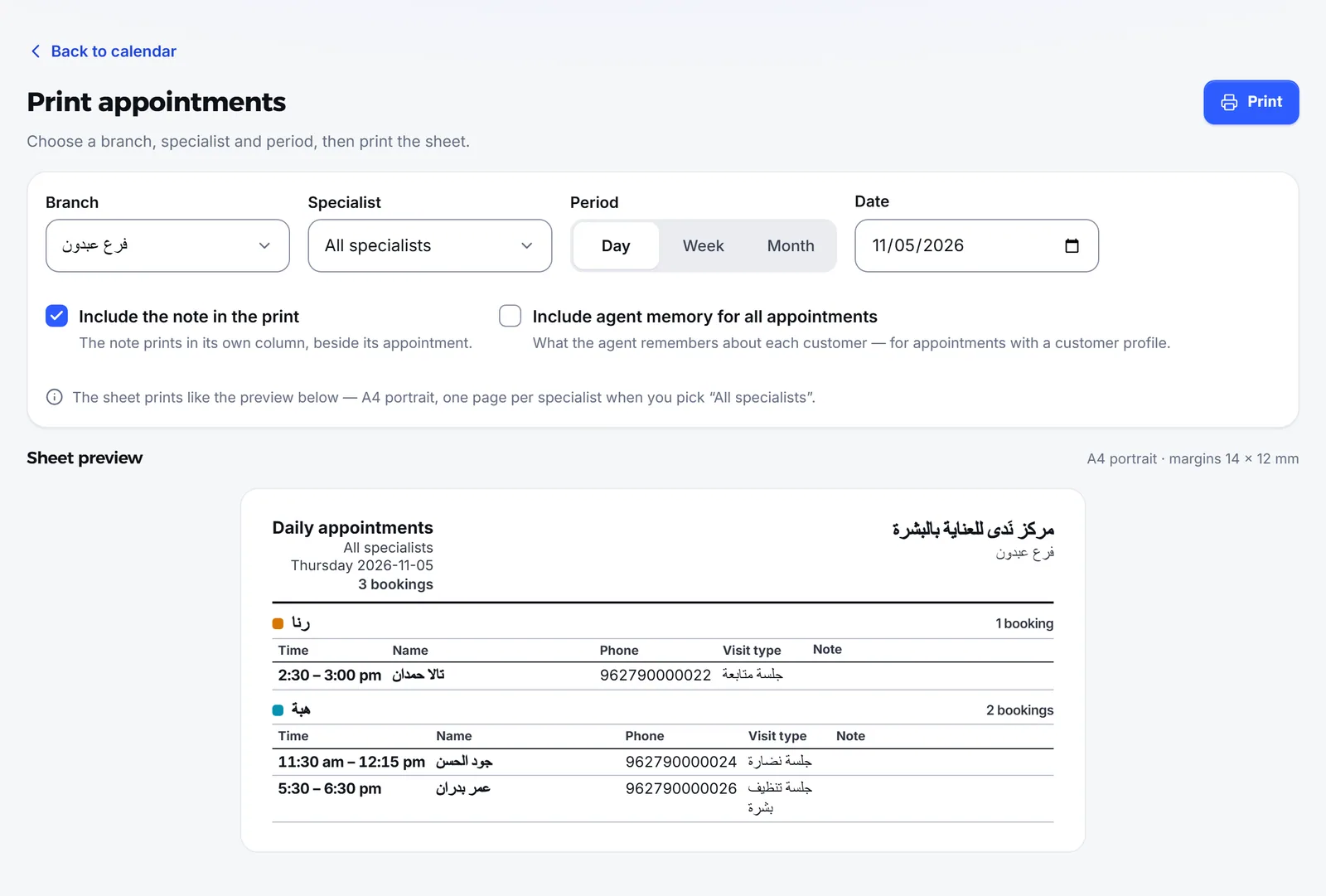
The sheet is A4 portrait with your business’s logo at the top, from Settings → Logo. With All specialists, each specialist prints on a page of their own.
| Column | What it holds |
|---|---|
| Time | From start to end, so the visit’s length shows |
| Name | The person the appointment is for |
| Phone | The customer’s number |
| Visit type | The visit type, in your words |
| Note | The visit note, when you chose to include it |
The customer’s subscription end date also shows when they have a subscription, and the Agent memory under each appointment when you included it.
How do I export bookings to Excel?
Section titled “How do I export bookings to Excel?”Press Download all bookings in Calendar, and a CSV file with all your appointments downloads.
- Pick a branch at the top of the calendar if you want a single branch’s appointments, or leave it on All branches.
- Press Download all bookings. On a phone it is under More.
- Open the file in Excel.
The column headings are in Arabic. The main ones:
| Columns | What you find |
|---|---|
| Date and time, customer, phone, branch | The appointment’s basics |
| Type, status, stage | The visit type, its status and its stage, in your words |
| Specialist and room | Who saw the customer, and where |
| Who created it, and attribution | The agent or staff, and whether the agent booked on its own from the first message or after a staff member joined the chat |
| Length, notes, custom fields | One column for each field you defined in the booking settings |
| Imported record | Tells records imported from old registers apart from live appointments |
An account tied to a branch exports that branch’s appointments only. To export all of your account’s data, not just appointments, see Data export.
Who can manage bookings?
Section titled “Who can manage bookings?”Anyone with permission to view appointments sees the calendar; anyone with permission to manage bookings books, edits and records attendance.
- The owner and admins hold every permission and see every branch.
- A staff account tied to a branch sees that branch’s appointments only.
- Permissions are granted on the Team page. See Team and permissions.
Frequently asked questions
Does the file only export what is on screen?
No. It exports every appointment, not just the month on screen. If you picked a branch in the calendar, it exports that branch's appointments.
Does Arabic show correctly when I open the file in Excel?
Yes. The file is prepared for Excel to open with Arabic intact, and its column headings are in Arabic.
Are cancelled appointments printed?
No. The sheet prints standing appointments only; cancelled ones are left out.
Can a branch's staff export another branch's bookings?
No. An account tied to a branch sees, exports and prints that branch's appointments only.
How do I repeat a customer's appointment every week?
Tick “Repeat this booking weekly” in the booking form and choose the “Number of weeks”, from 2 to 52.