
WhatsApp ordering in Mujib, with a menu, delivery and order status
WhatsApp ordering in Mujib means the agent takes the customer’s order in the chat, from your menu and at its prices, while the system computes the total and the delivery fee. The order then lands on the Orders page, where your team confirms, prepares and hands it over, and the customer gets a message at each step.
How do I switch on orders and the menu?
Section titled “How do I switch on orders and the menu?”One switch in Settings turns them on, and the account owner and admins hold it. Choosing the business type that takes orders turns the switch on by itself; changing the business type to another one turns it off, so switch it back on if you take orders too.
- Open Settings, then Your business & modules.
- Switch on Orders & delivery.
- The Orders and Menu & products pages appear in the menu.
Switching it off deletes nothing: the menu and the orders stay, but both pages go away and the agent stops taking orders. While the menu is empty, the agent answers customers’ questions and hands any order to your team; it never makes up items.
How do I build the WhatsApp menu the agent sells from?
Section titled “How do I build the WhatsApp menu the agent sells from?”You build it on the Menu & products page: categories, each with items, prices and options. The agent sells from this page only, at these prices.
- Press New category and name it, for example “Sweets”. The agent shows categories to customers with the same names and order.
- Press New item and enter the name and the price; add a description and a photo if you like.
- If the item has options, add an Option group such as “Size”, and turn on Required when the customer must pick one; the agent then asks about it before completing the order.
- Save the item.
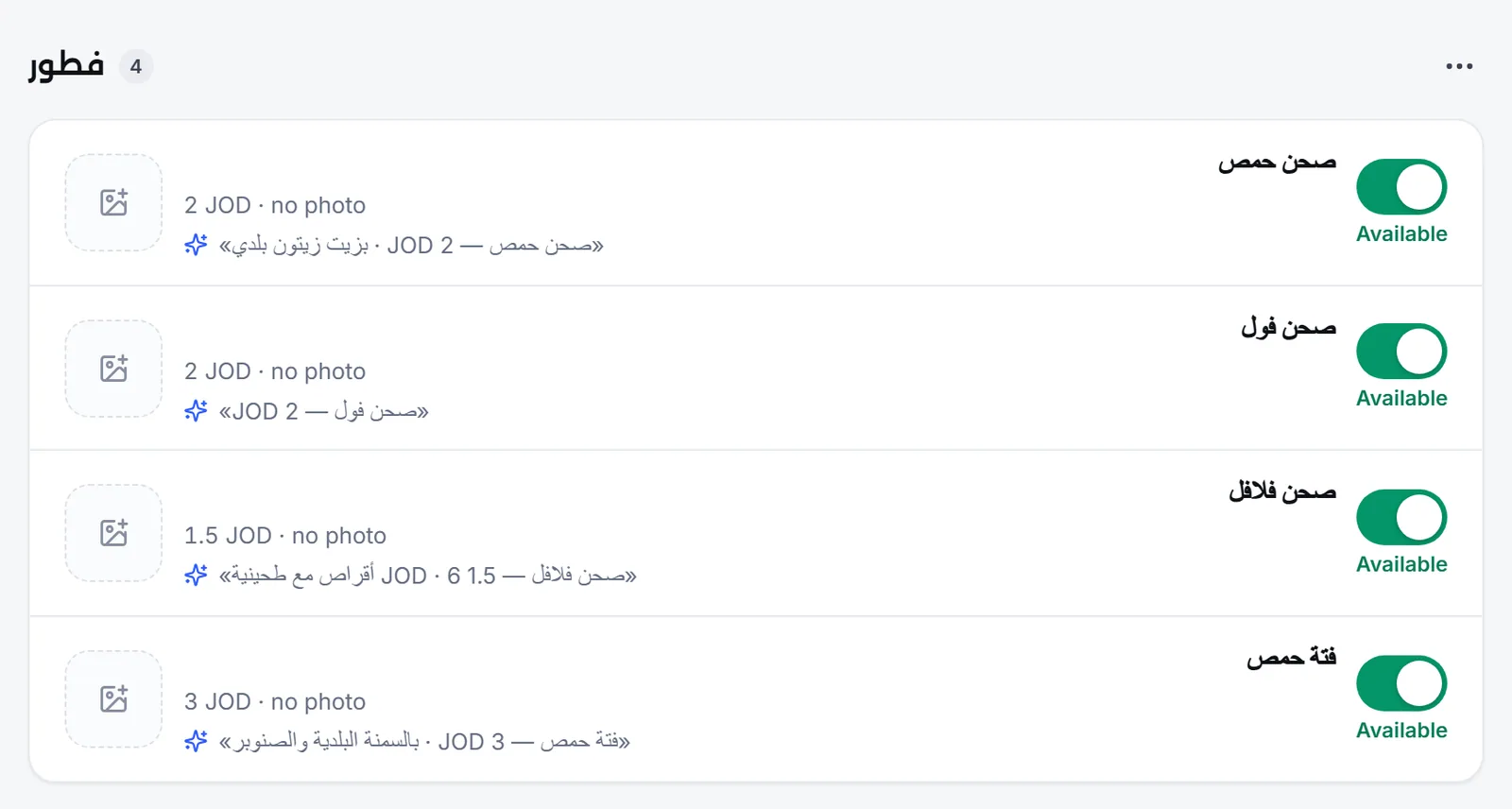
The Available switch next to each item means it is available today. When an item runs out, tap the switch once: the agent stops offering it and apologises for it, and it comes back by itself the next morning. An item that is Hidden from the agent stays unknown to the agent until you put it back on the menu.
The menu page is for accounts that manage orders for the whole business, so a branch account does not have it.
How do I set up delivery and payment?
Section titled “How do I set up delivery and payment?”You set them in Order settings on the Orders page, which has the sections Delivery & pickup, Payment, Hours & confirming, Customer messages and Alerts.
- Delivery and pickup: turn on Delivery, Pickup from the branch, or both.
- Delivery zones: press Add a zone, name the area the way your customers write it, then set the Fee, the Minimum and the Time on the road, and pick the branch that delivers there. The system computes the fee and the minimum on every order; the agent only reads them to the customer.
- Payment: Cash on delivery, or CliQ with your CliQ alias, which the agent sends to the customer. Mujib collects no money and cannot see your bank account; card payment is not available.
- Alerts: choose whether this device plays a sound for a new order, and whether new devices start with the sound on.
Does the agent take orders by itself?
Section titled “Does the agent take orders by itself?”Yes. The agent takes the order in the chat one question at a time, then sends one summary that the customer confirms before the order is placed.
- It asks for the items, their quantities and any required option, such as the size.
- It asks: delivery or pickup? For delivery, the area and the full address; for pickup, the branch when you have more than one.
- It asks for the payment method and the name for the order.
- It sends a summary with each item and quantity, the subtotal, the delivery fee, the total and the payment method, using the figures the system computed.
- Once the customer explicitly agrees, it places the order and sends them its number and total.
The agent never promises a preparation or delivery time of its own; it says your team will confirm the order and its time. When the area is not listed, it says you do not deliver there and offers pickup. When a customer asks where their order is, it tells them the recorded status only; changing or cancelling a placed order goes to your team.
Who confirms the order?
Section titled “Who confirms the order?”The question Who confirms the order? in the Hours & confirming section decides.
| Option | What happens |
|---|---|
| A team member confirms every order | The order arrives as New, and someone on your team presses Confirm the order and picks the time |
| The agent confirms by itself | The agent confirms only when every item is available and the address is inside a delivery zone; otherwise it arrives as New for your team |
The Default preparation time is the time the confirm button offers first. It starts at 20 minutes, and the arrow next to the button offers other times.
How does the customer know the status of their order?
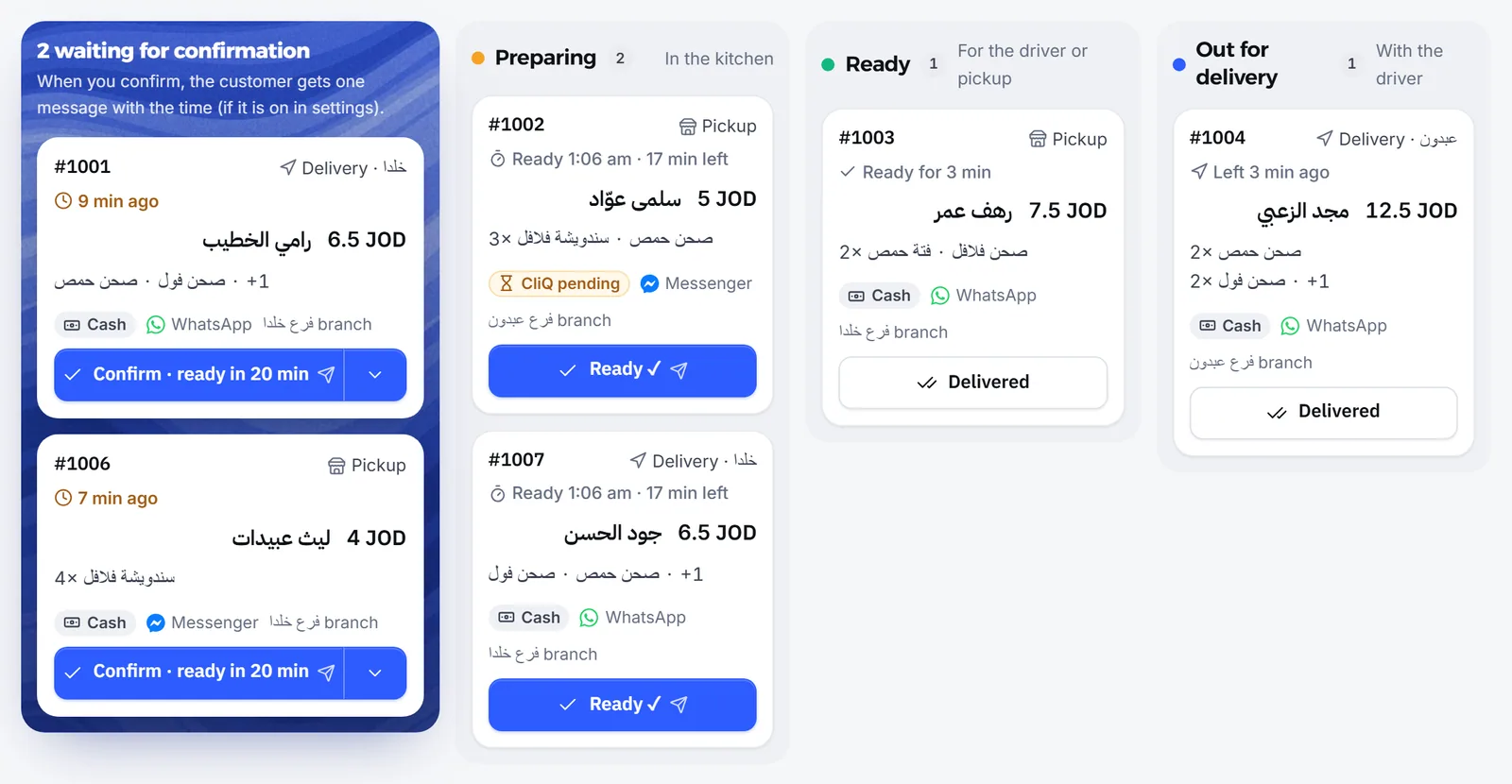
Section titled “How does the customer know the status of their order?”They get a short message when someone on your team presses the status button on the order; no message is ever sent by itself. Under the button, the Send to the customer box can be unticked before pressing.
| Status | What it means |
|---|---|
| New | Waiting for confirmation |
| Needs attention | Someone needs to talk to the customer before confirming or cancelling |
| Preparing | In the kitchen after confirming |
| Ready | Ready for the driver or for pickup |
| Out for delivery | With the driver, for delivery only |
| Delivered | Handed to the customer |
| Cancelled | Cancelled, with a reason you pick |
You write the message texts under Customer messages, and you can include the order number, the preparation minutes and the cancel reason. Any message can be switched off for good from there.
How do I pause taking orders?
Section titled “How do I pause taking orders?”Tap the ordering status pill at the top of the Orders page, then Pause taking orders, and pick how long: Half an hour, An hour or Until I turn it back on. While paused, the agent apologises to customers and tells them when you are back, and the orders you already have stay as they are.
- If orders have their own hours, choose Separate order hours instead of Whenever the agent is on in Hours & confirming. Outside those hours, the agent tells customers you are closed right now.
- For an order that came in by phone, press New order and enter it yourself.
- For an item that runs out mid-shift, press Sold out? and switch it off without opening the menu.
Frequently asked questions
Does Mujib collect payment for orders?
No. The customer pays cash on delivery or by CliQ transfer to your alias, and the money reaches you directly. Card payment is not available.
Can the agent invent an item or a discount that is not on the menu?
No. The agent sells only the items available today on your menu, at their prices. It gives no discounts and makes up no offers, and the system, not the agent, computes the total.
Are order status messages sent to the customer by themselves?
No. A message goes out only when someone on your team presses the status button, and they can untick the send box before pressing it.
What happens if a customer asks for delivery to an area I do not cover?
The agent tells them you do not deliver there and offers pickup from a branch when pickup is on.
Can I enter an order that came in by phone?
Yes. Press “New order” on the Orders page and enter it yourself; it appears on the board with the other orders.