
Appointment attendance, visit outcome and booking stages
Appointment attendance is recorded in Mujib with one tap on the booking: Mark attended or Mark no-show. Attendance and the booking stages you define drive the attendance reports for each specialist, so record it every day to keep the reports matching what really happened.
The agent books, moves and cancels appointments, but it cannot know whether the customer came. That is what the front desk records when the customer arrives or does not.
What statuses can an appointment have?
Section titled “What statuses can an appointment have?”Every appointment has one of five statuses, the same in every business.
| Status | When |
|---|---|
| Pending | Not confirmed yet, such as a booking missing required details |
| Confirmed | An upcoming, confirmed appointment. The agent’s bookings are saved as confirmed |
| Attended | Your team recorded that the customer came |
| No-show | Your team recorded that the customer did not come |
| Cancelled | Cancelled, by the customer through the agent or by your team |
An appointment marked attended or no-show is never moved or cancelled by the agent: it has become a record of what happened.
How do I record that a customer came?
Section titled “How do I record that a customer came?”Open the appointment in Calendar, then press the attendance button at the top of its card.
- Open Calendar on Today and click the customer’s appointment.
- Press Mark attended if they came, or Mark no-show if they did not.
- If your business sells subscriptions and the customer came without subscribing, press Came, did not subscribe straight away, optionally fill in Why did they not subscribe?, then press Save “came, did not subscribe”. Records the attendance and the outcome in one go
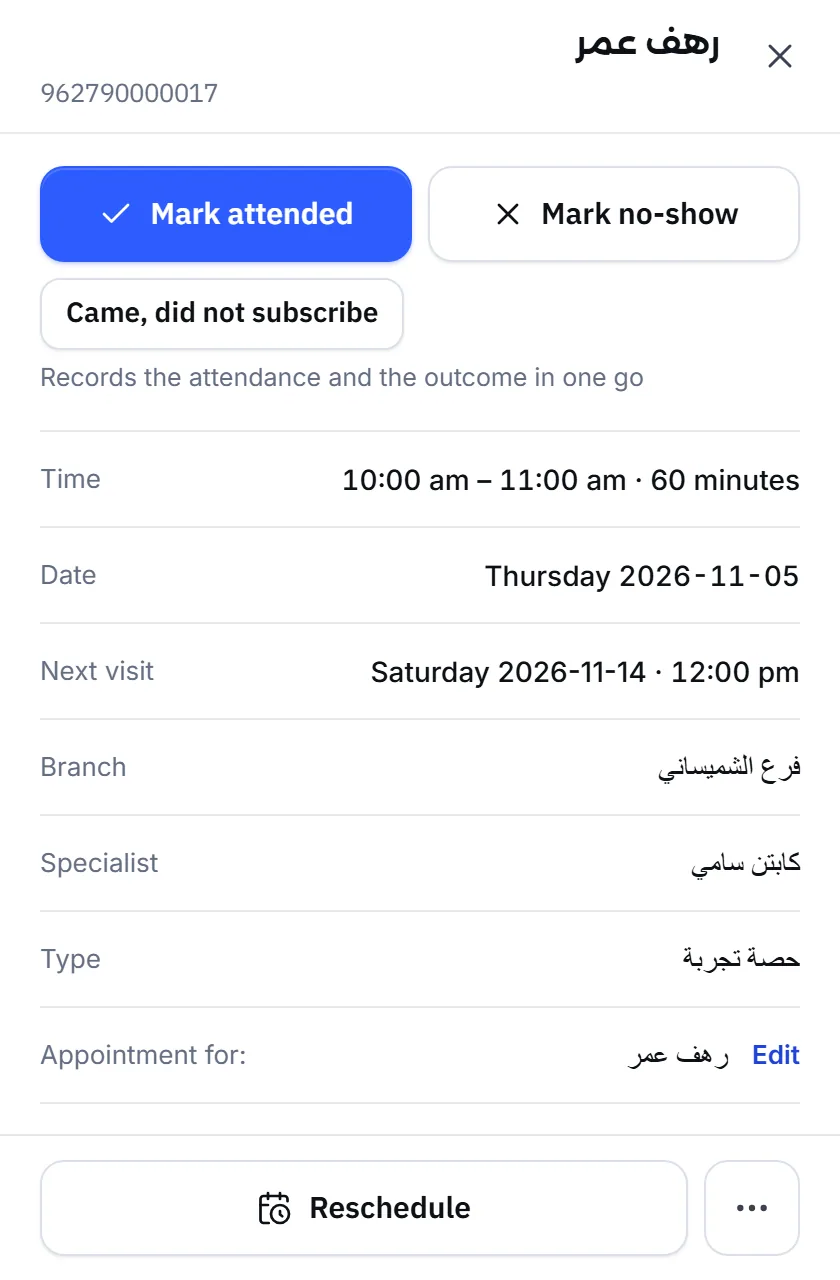
Recording attendance needs the permission to manage bookings. See Team and permissions.
What is the visit outcome, and how do I record it?
Section titled “What is the visit outcome, and how do I record it?”The visit outcome answers one question after attendance: Subscribed or Did not subscribe? It only appears in businesses that sell subscriptions.
- After Mark attended, an Outcome row appears with the two choices.
- Choosing Subscribed opens the subscription form, so you record the sale and the outcome together.
- With Did not subscribe you can note why. Saves as you type, and shows in the reports.
- To change the outcome later press Edit beside it, or Clear outcome. The subscription itself stays recorded — this only changes the visit’s outcome.
The question never appears on a visit drawn from an existing subscription, for a no-show, or on visit types where you switched off Ask: subscribed / not subscribed?.
How do I fix an attendance I recorded by mistake?
Section titled “How do I fix an attendance I recorded by mistake?”Press Correct attendance on the booking’s card, then choose the right one or clear it.
- To turn Attended into No-show or the other way round, press the other button.
- Clear attendance: Clearing puts the booking back to Confirmed, or to Pending if it is missing required details.
- This visit is over, so a no-show cannot be cleared. If the customer did come, choose Attended.
What are booking stages, and how do I define them?
Section titled “What are booking stages, and how do I define them?”Booking stages are coloured badges you name in your own words, such as “check-up only” or “will think about it”, and each one carries a meaning the reports rely on.
- Open Branches → Booking settings → Booking stages.
- Press Add stage, type the Stage name and pick the Stage colour.
- Under Meaning, choose Came, Didn’t come, Cancelled or Not decided yet.
- If your business sells subscriptions, tick and subscribed on this visit on the stage that means the visit ended in a subscription.
- Press Save booking settings.
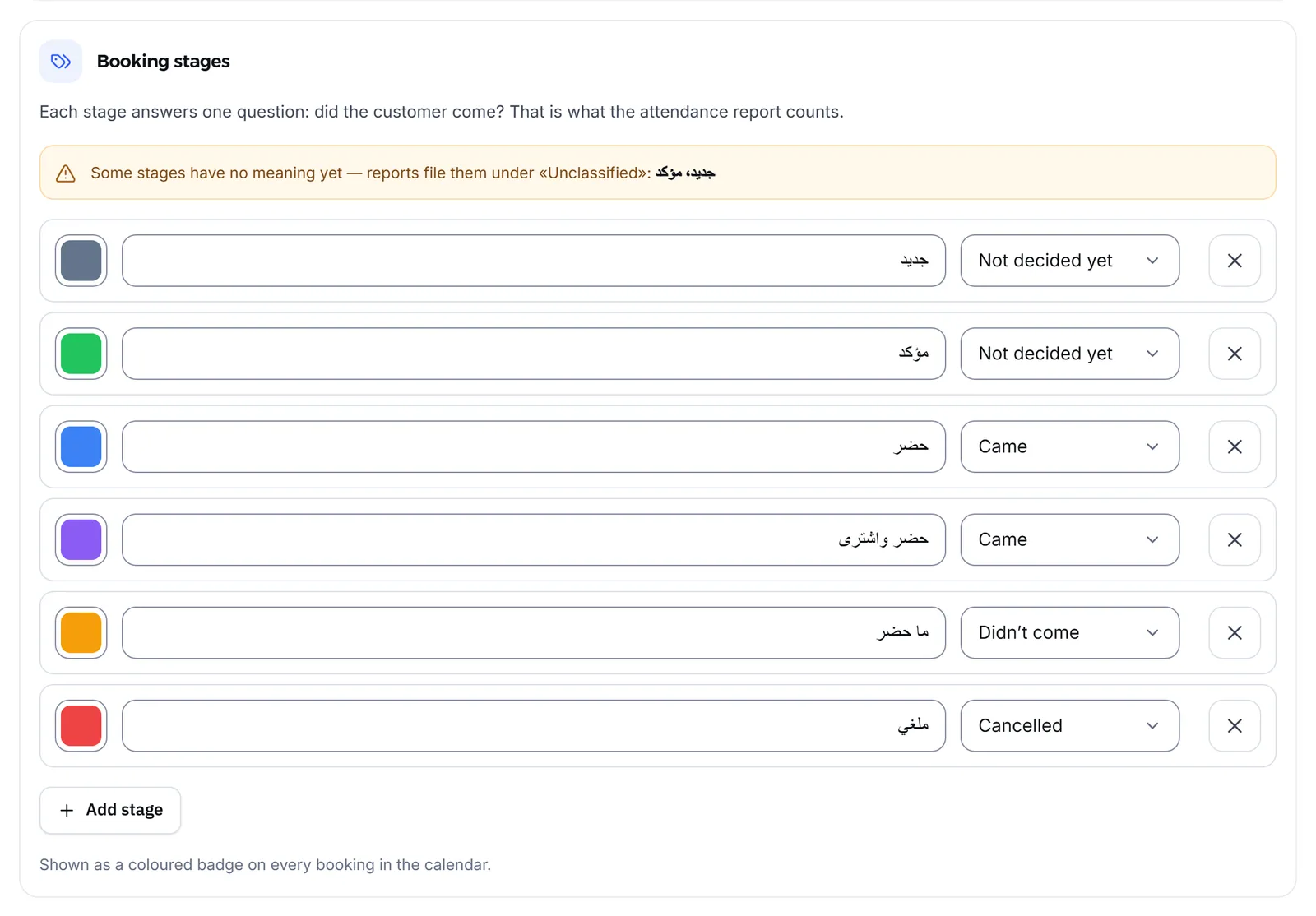
Every account starts with five stages: New, Confirmed, Showed up, No-show and Cancelled. Three of them come with a meaning: Showed up, No-show and Cancelled. You can edit them or add your own, up to 20 stages.
- A stage shows as a coloured badge on the appointment in the calendar, and your team picks it in Customer stage in the booking form, or in What happened? on the booking’s card.
- A stage marked as a subscription also counts as attended: nobody subscribes without coming.
- When you delete a stage, the appointments on it lose its colour in the calendar.
Why does each stage’s meaning matter?
Section titled “Why does each stage’s meaning matter?”Because the reports do not read your words; they read the meaning you gave each stage.
Each stage answers one question: did the customer come? In businesses that sell subscriptions it answers a second: did they subscribe on this visit? The attendance report is counted from those answers.
A stage whose meaning is Not decided yet counts as neither attended nor no-show, and the reports file it as unclassified. The booking settings show a note naming those stages until you set their meaning.
Read the reports themselves in Reports.
Frequently asked questions
Who records appointment attendance?
Your team, in the calendar. The agent books, moves and cancels, but it cannot know whether the customer came; whoever receives them records it.
I marked a no-show by mistake. How do I fix it?
Open the booking, press “Correct attendance”, then choose “Mark attended”. A past visit's no-show cannot be cleared, but it can be turned into attended.
What is the difference between a booking's status and its stage?
The status is fixed in every business, such as confirmed, attended or cancelled. Stages are yours, with your names and colours, and you decide what each one means in the reports.
What is an "unclassified" stage?
A stage whose meaning you have not set. It counts as neither attended nor no-show in the reports, which list it as unclassified until you set its meaning.
Is the subscription question asked on every visit?
No. It only appears when your business sells subscriptions, and never on a visit drawn from a subscription, on visit types where you switched it off, or for a no-show.